Concept & Design Philosophy
Official concept explainer and design philosophy of fjFlow.
Concept & Design Philosophy
An overview of the vision, intentions, and core philosophies behind the development of FJ Flow.
[!TIP] 🎬 Official Concept Explainer Video (YouTube Full HD • ~2m 49s)
An official explainer video that walks you through the core philosophies, structural frictions, and live demonstrations of each feature (Caret-First, Keyboard-First, Omni UI Hint, Space Mouse, Smart UI, and technical principles) with full English narration and high-resolution footage.
Official Video: fjFlow Concept & Design Philosophy (~2m 49s)
Background: Challenges in Modern Text Input
In modern PC workflows—particularly during long hours of coding or writing—small cognitive loads and physical strains during typing steadily erode concentration.
1. Difficulty in Grasping Input State Disrupts Focus
In today’s multi-window environments, users must carefully inspect the screen to verify which application currently has focus and where the caret is positioned. Furthermore, checking the CapsLock state or IME input mode (in multilingual environments) requires looking at keyboard LEDs or glancing at the edges of the screen. This constant back-and-forth eye movement disrupts the flow of typing and reduces overall input efficiency.
Look at the figure below. There are multiple Notepad windows—can you immediately tell which window has focus and where the caret is located?
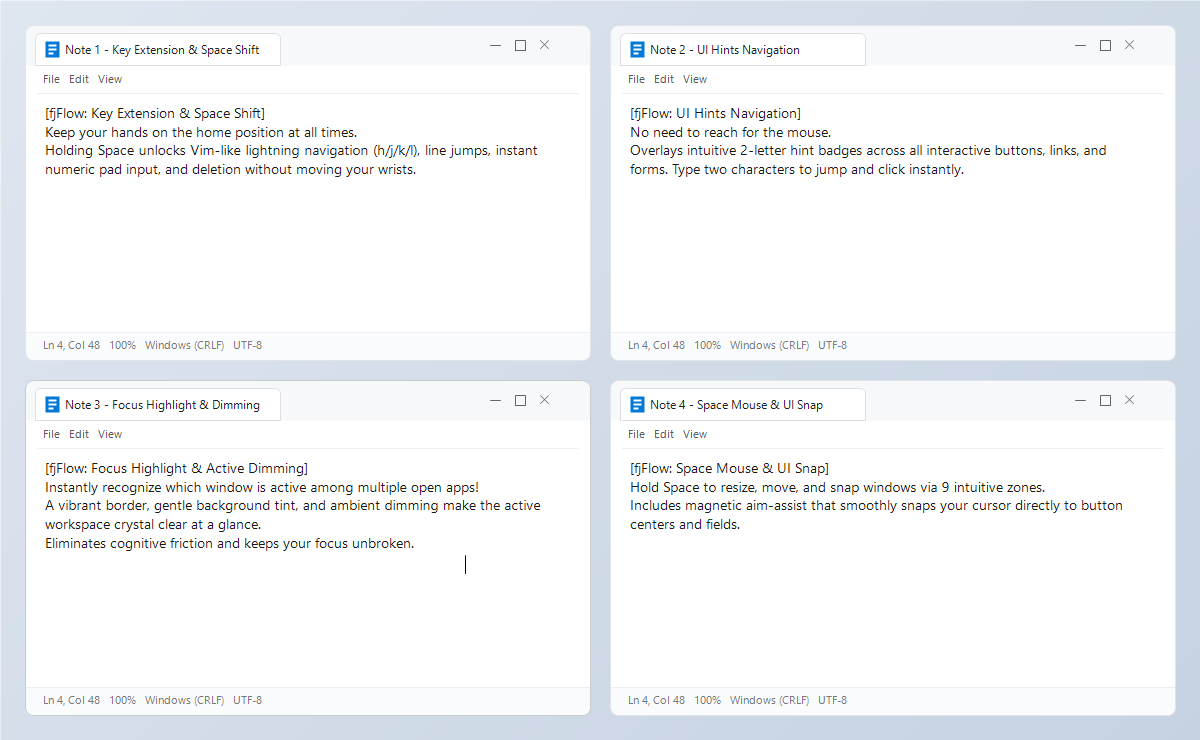
Very few people can identify it immediately. Most people solve this by reaching for the mouse and clicking their intended input location. Even if we vaguely realize this slows us down, our hand naturally reaches for the mouse.
Why does this issue happen? First, let’s see if we can distinguish the focused window from background windows.
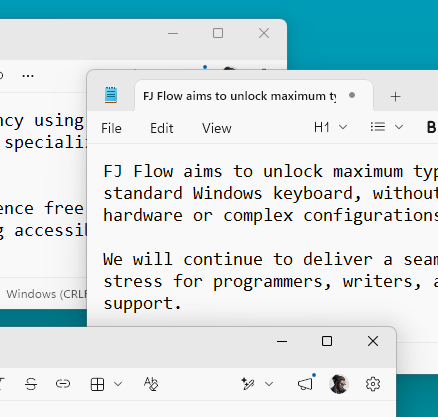
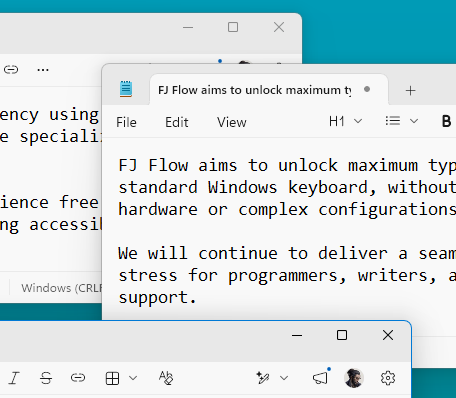
In this figure, the bottom-most Notepad has focus, yet the window appearance alone makes it almost indistinguishable. Windows provides an option to show accent colors on title bars and window borders to address this, but as shown below, it is quite subtle and often inadequate.
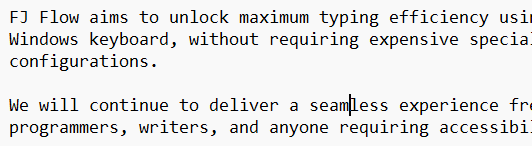
Next is the caret position. While it varies across applications, in most cases it is equally subtle and difficult to notice at a glance, as shown below.
Windows offers a “Text cursor indicator” accessibility feature to help solve this problem.
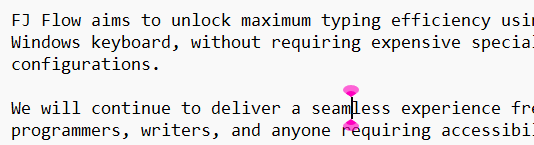
While it makes finding the cursor easy at a glance, it suffers from a major drawback: it does not work across all applications. For example, Google Docs does not show the text cursor indicator at all, and in VS Code it may appear in incorrect locations.
FJ Flow solves these problems with two key features: Focus Highlight and Caret Indicator.
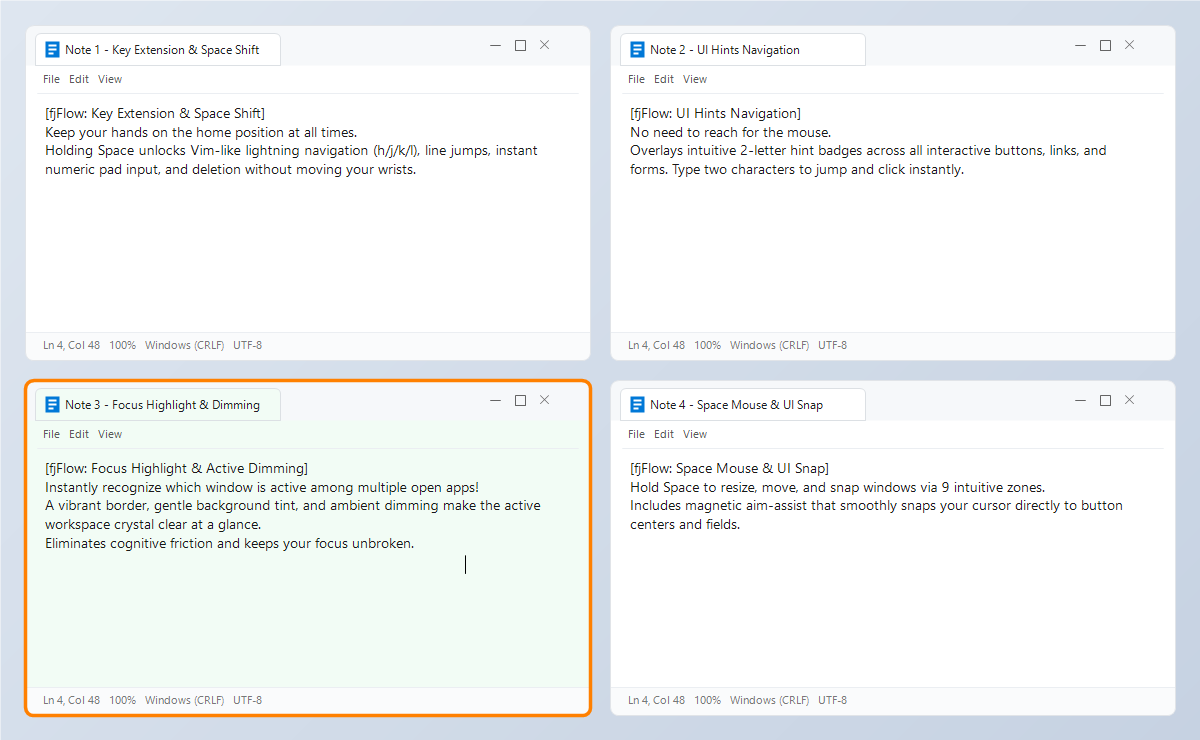
The focused window is prominently highlighted with a vivid border and soft background tint, allowing you to instantly recognize the active typing target at a glance. Ambient dimming (Highlight) can also be toggled to darken all background windows and maximize concentration.
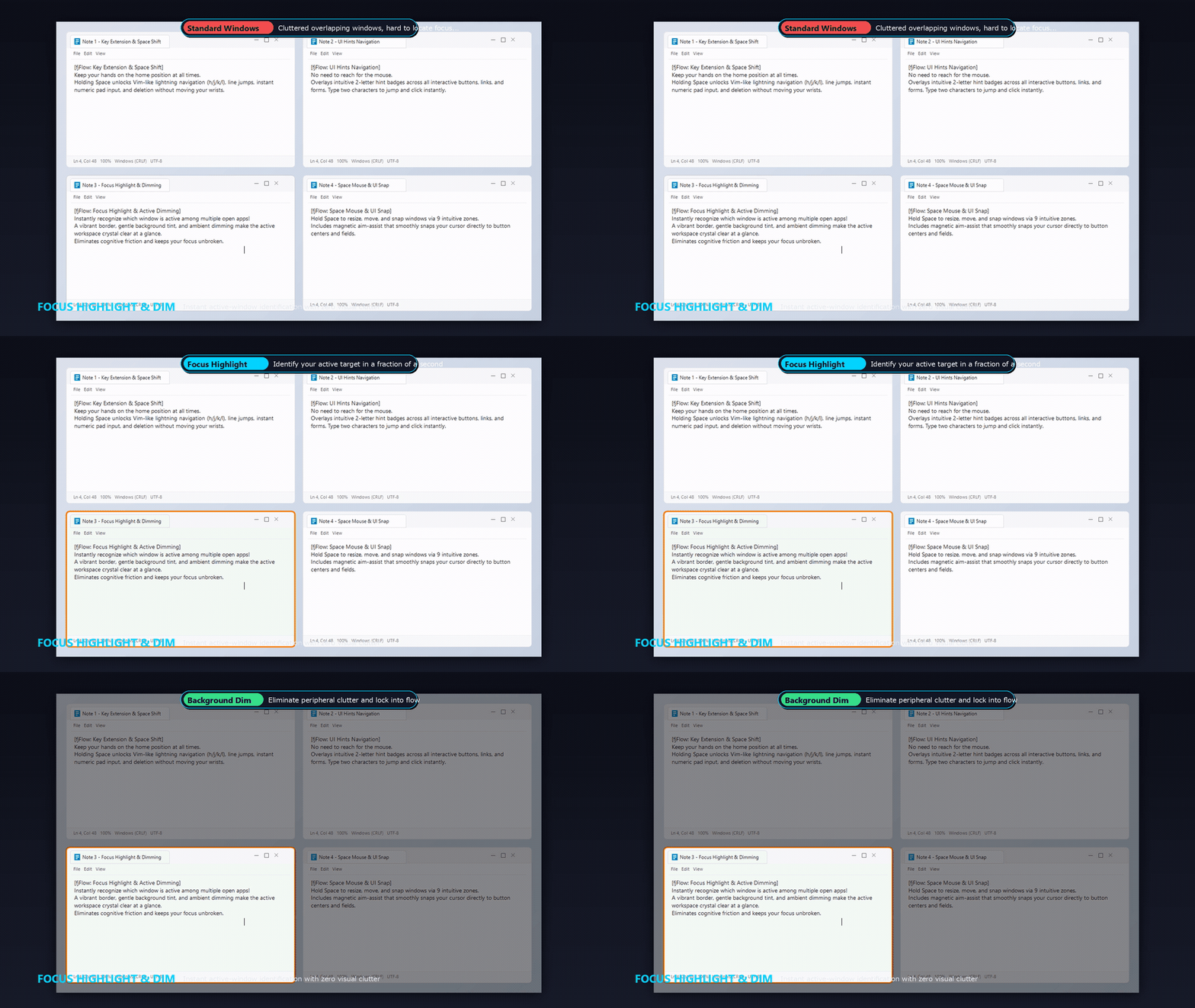
Figure: Ambient Dimming (Focus Highlight Live Demo) - Darkens background windows to eliminate visual noise and maintain Flow
2. Disruption of the Home Position and Hand Movements
Every time you reach for the arrow keys, Backspace, Delete, the numeric keypad, or copy/paste shortcuts, your right hand leaves the home position. Repeating this movement hundreds of times a day leads to wrist and shoulder fatigue.
FJ Flow’s Goal: Centralizing Features Around the Cursor
To solve these challenges, FJ Flow was developed around the core philosophy of “confining all visual attention and operations to the immediate vicinity of the text cursor (caret).”
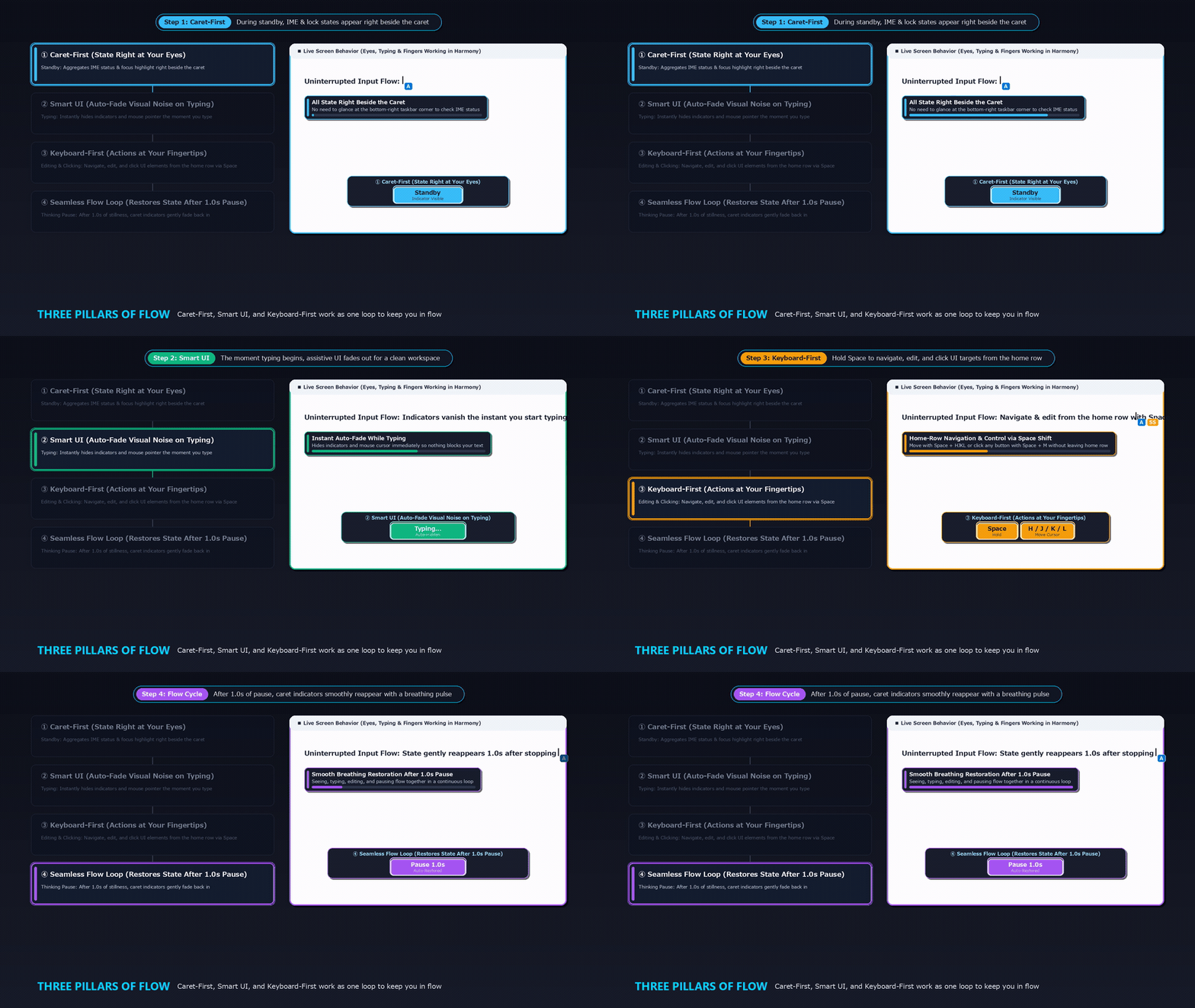
Figure: The 3-Pillar Synergy Loop — (1) Caret-First state aggregation ➔ (2) Smart UI instant auto-fade on typing ➔ (3) Keyboard-First home-row control ➔ (4) Smooth breathing restoration after 1.0s pause.
1. Minimizing Cognitive Load with “Caret-First” Design
All visual feedback—such as IME state, modifier lock status, and active modes—is aggregated right next to the text cursor. This eliminates eye movement while typing and allows you to intuitively grasp your input state without conscious effort.
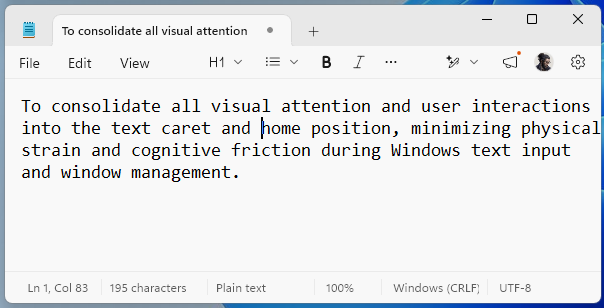
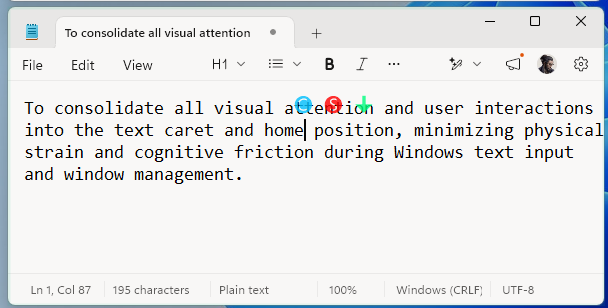
Figure: Caret Indicator - [Left] Standard Windows / [Right] Modifier and lock indicators aggregated directly beside the caret
2. Smart Auto-Fade: Zero Visual Noise While Typing
Assistive UI should never obstruct the user’s view while focused on typing. fjFlow automatically hides the indicators the moment typing starts, ensuring a completely clean visual field. When typing stops, the indicator automatically reappears after a brief delay.
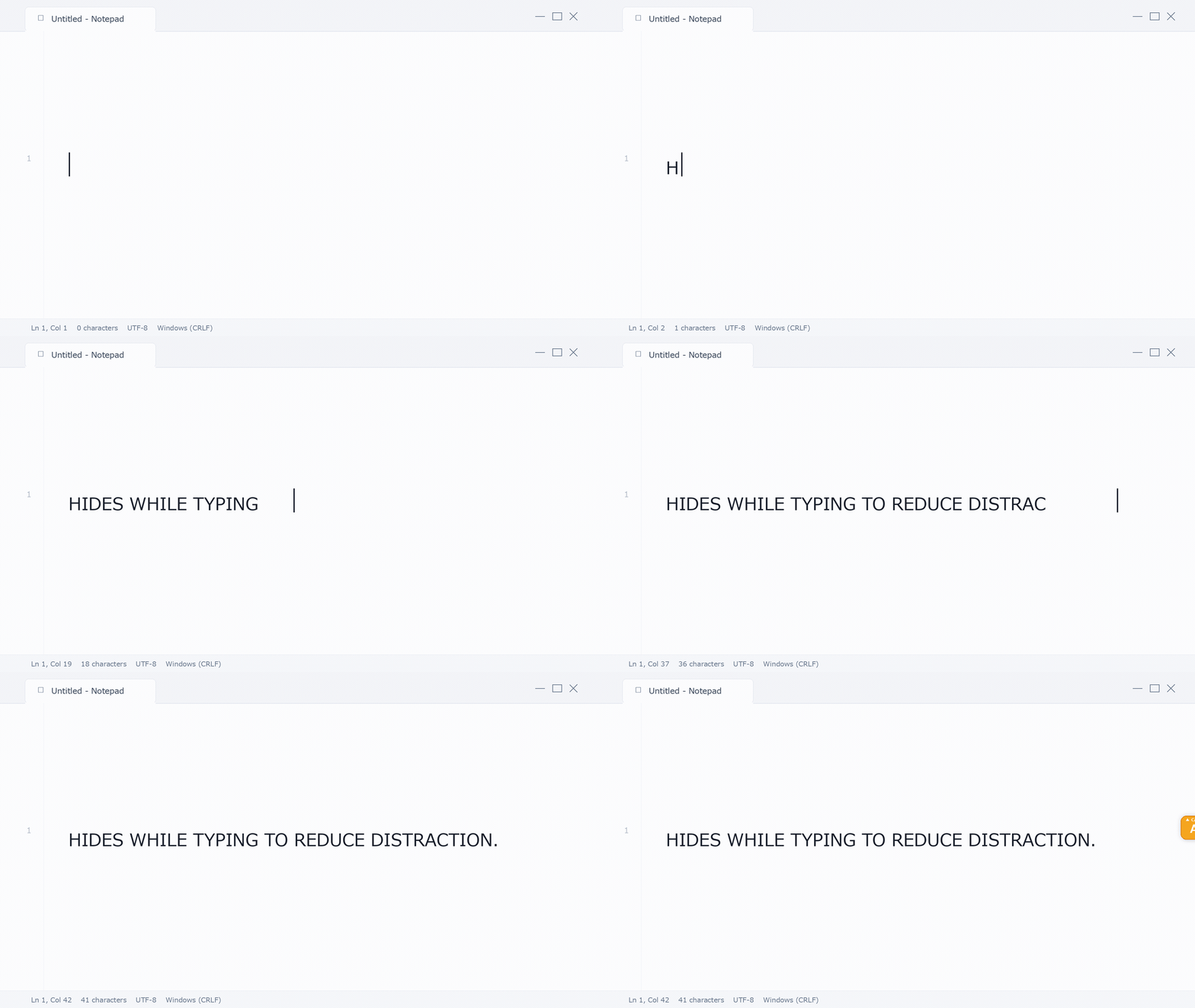
Figure: Smart Auto-Fade (Live Demo) - [Standby] State indicator (↓) shown beside caret ➔ [Typing] Indicators automatically vanish instantly to keep focus ➔ [Stopped] Automatically restored after 1 second of pause
3. Maintaining the Home Position via “Space Shift” & Key Extensions
By using a natural trigger—holding the Space key (or modifiers such as Muhenkan/Henkan)—you can navigate the cursor and perform editing operations without moving your hands away from the home position.
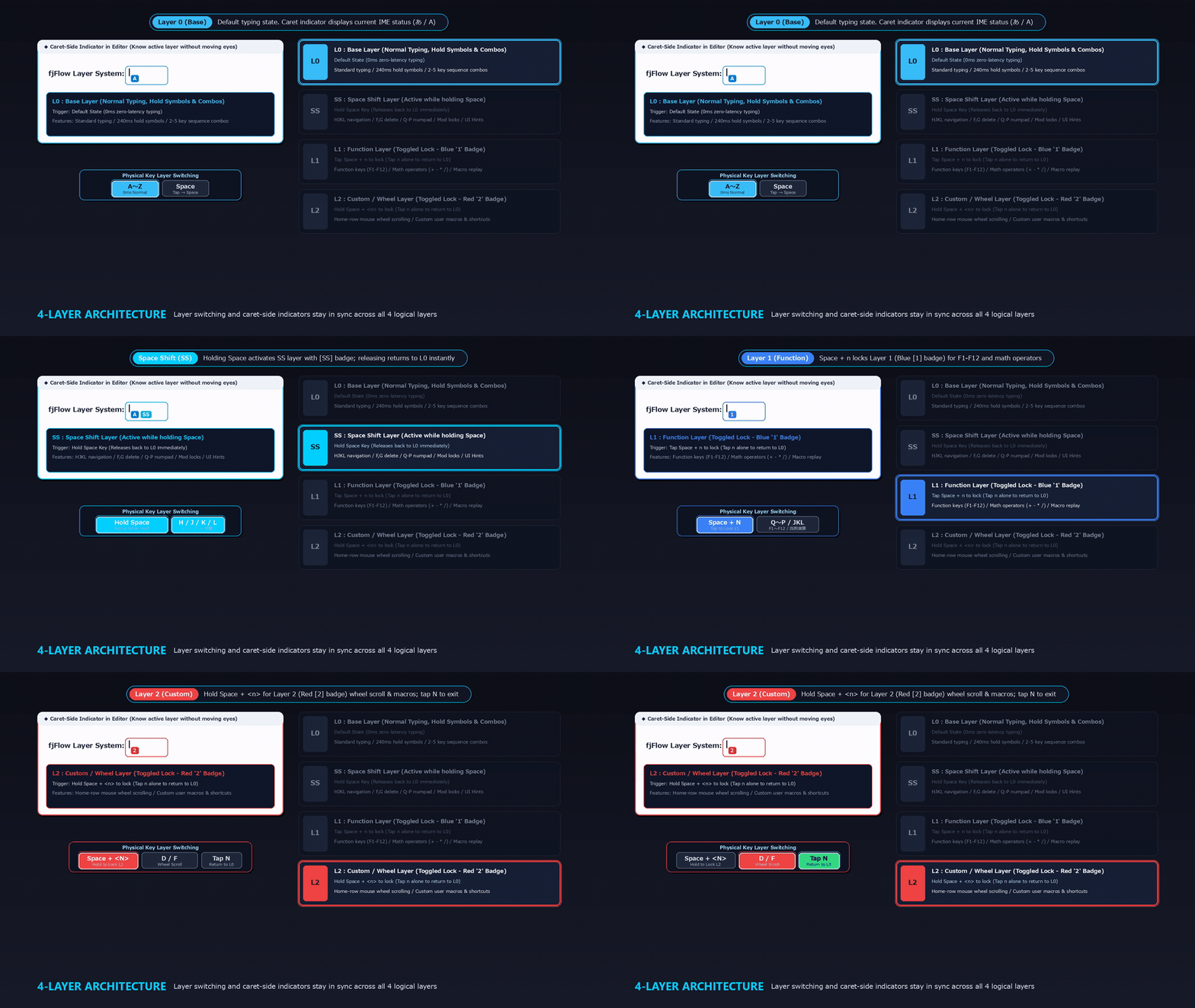
Figure: 4-Layer Architecture (L0 ⇄ SS ⇄ L1 ⇄ L2) — Physical layer switching stays synchronized with the caret-side indicator at all times.
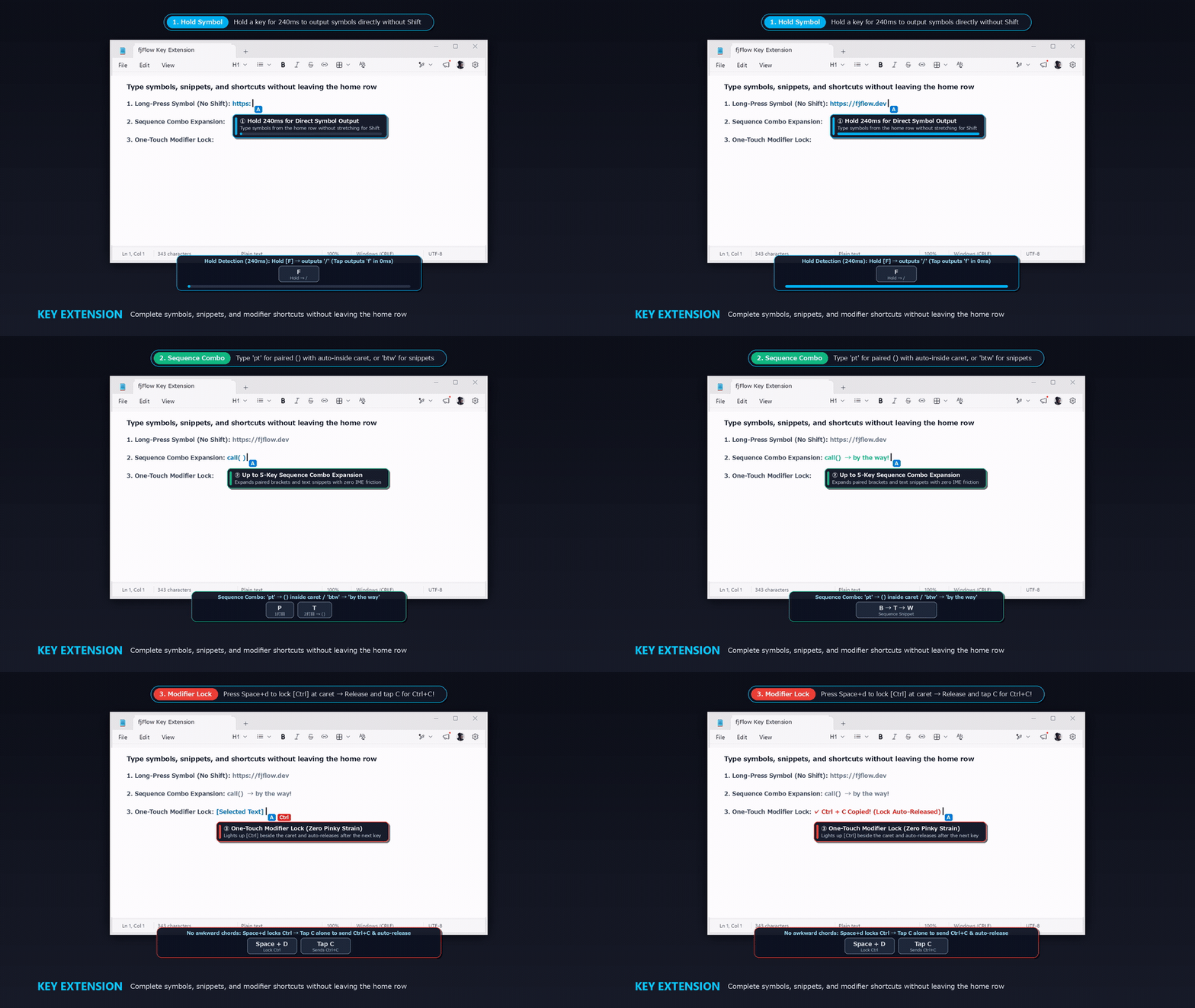
Figure: Key Extension Live Demo — Hold a key for 240ms to output symbols directly, type 2–5 key sequence combos (`pt` ➔ `()`, `btw`), or lock modifiers with one touch (`Space + d` ➔ `Ctrl`).
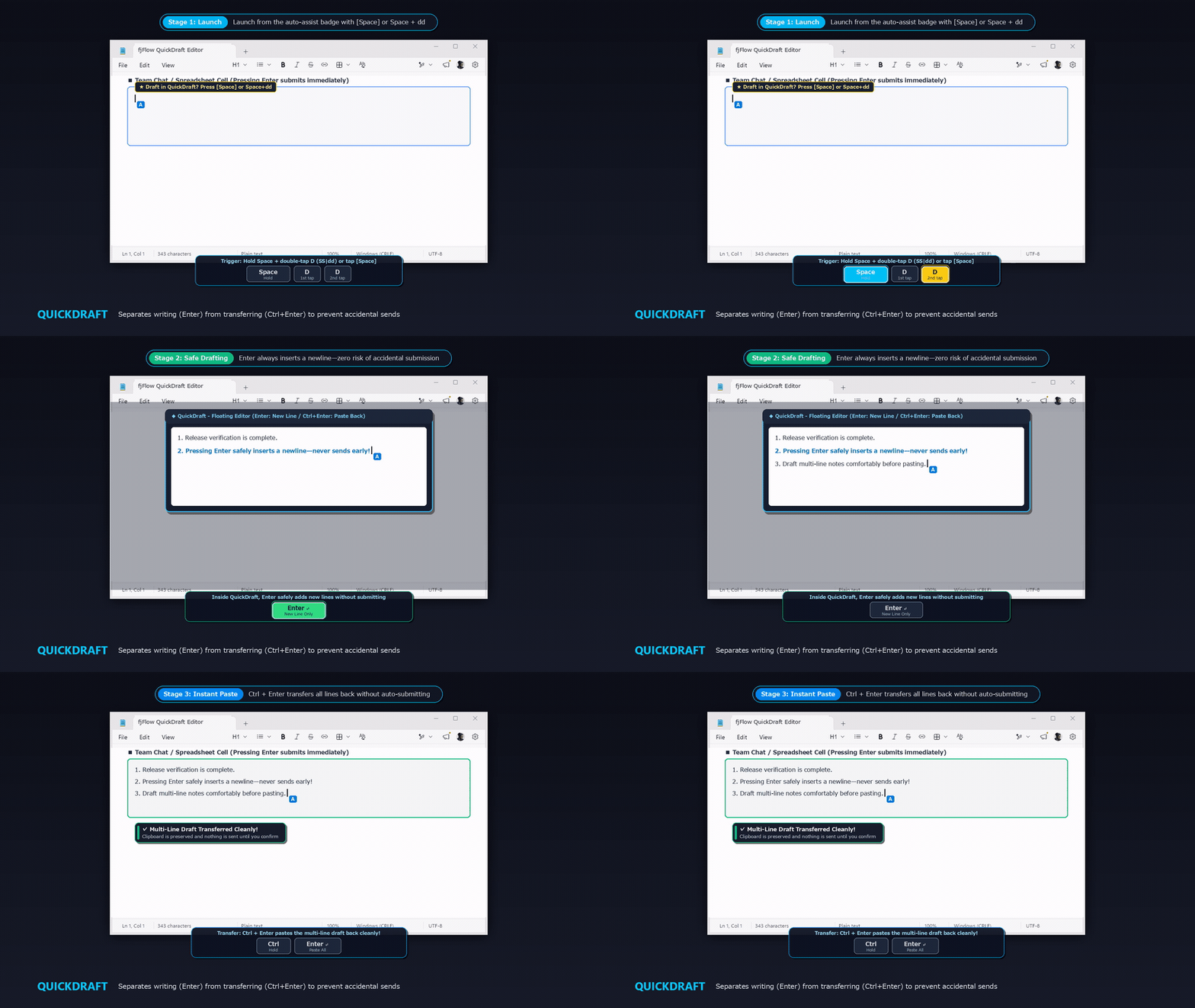
Figure: QuickDraft Live Demo — Launch via `Space + dd`, press `Enter` safely for newlines without premature submission, and press `Ctrl + Enter` to transfer all lines back at once.
- On-Screen Key Guide HUD:
Never worry about memorizing key bindings. Simply hold
Spaceand an elegant on-screen heads-up display (HUD) reveals the entire second-layer layout instantly. ReleaseSpaceto return seamlessly to your document.
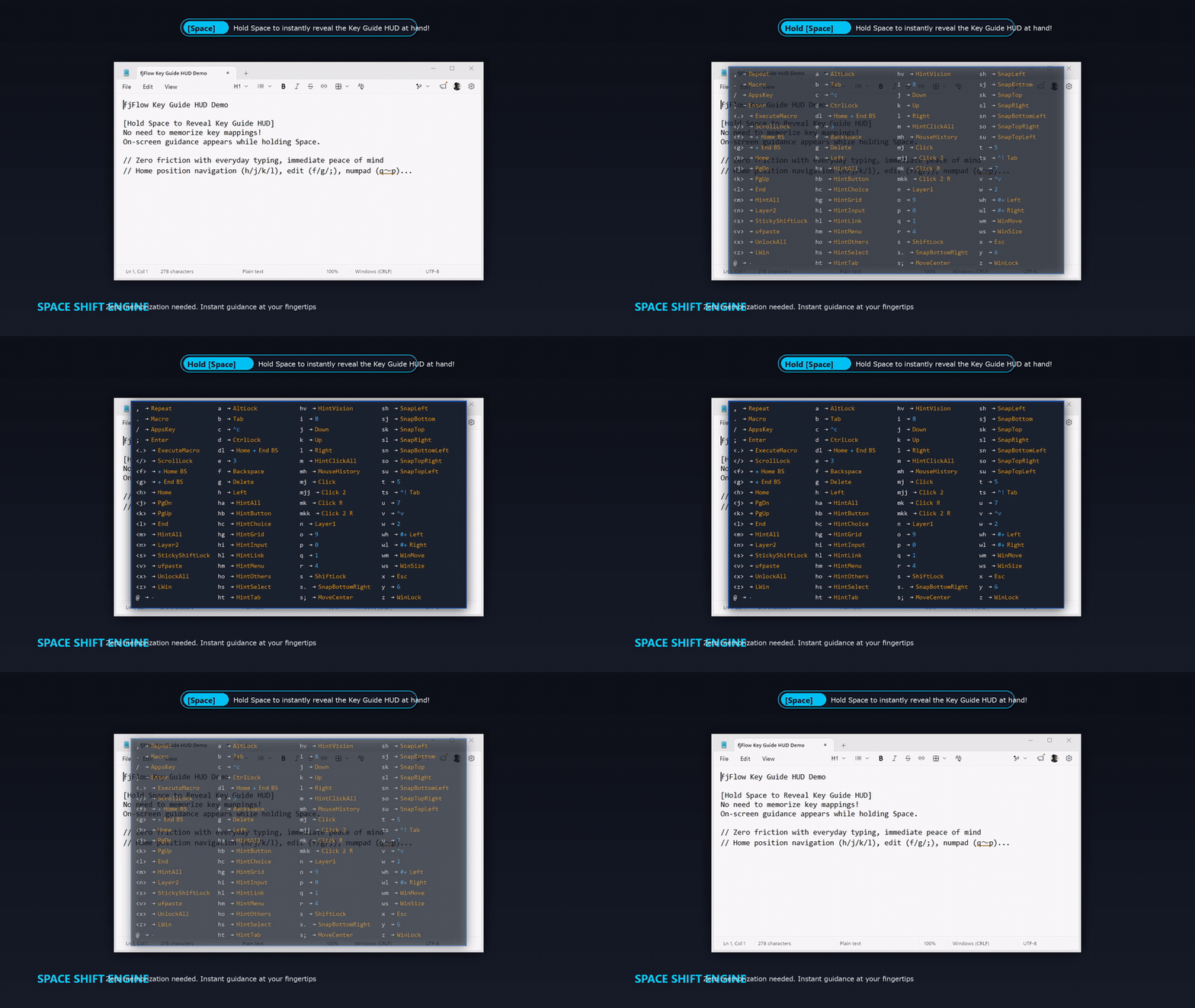
Figure: Key Guide HUD (Live Demo) - On-screen cheat sheet appears in real-time while holding Space, vanishing instantly upon release.
4. SpaceMouse: Effortless Window Dragging Anywhere
Window management shouldn’t require precise targeting of thin title bars. With SpaceMouse, simply hold Space and left-drag anywhere inside a window (even on text or code) to reposition it smoothly across your desktop and monitors.
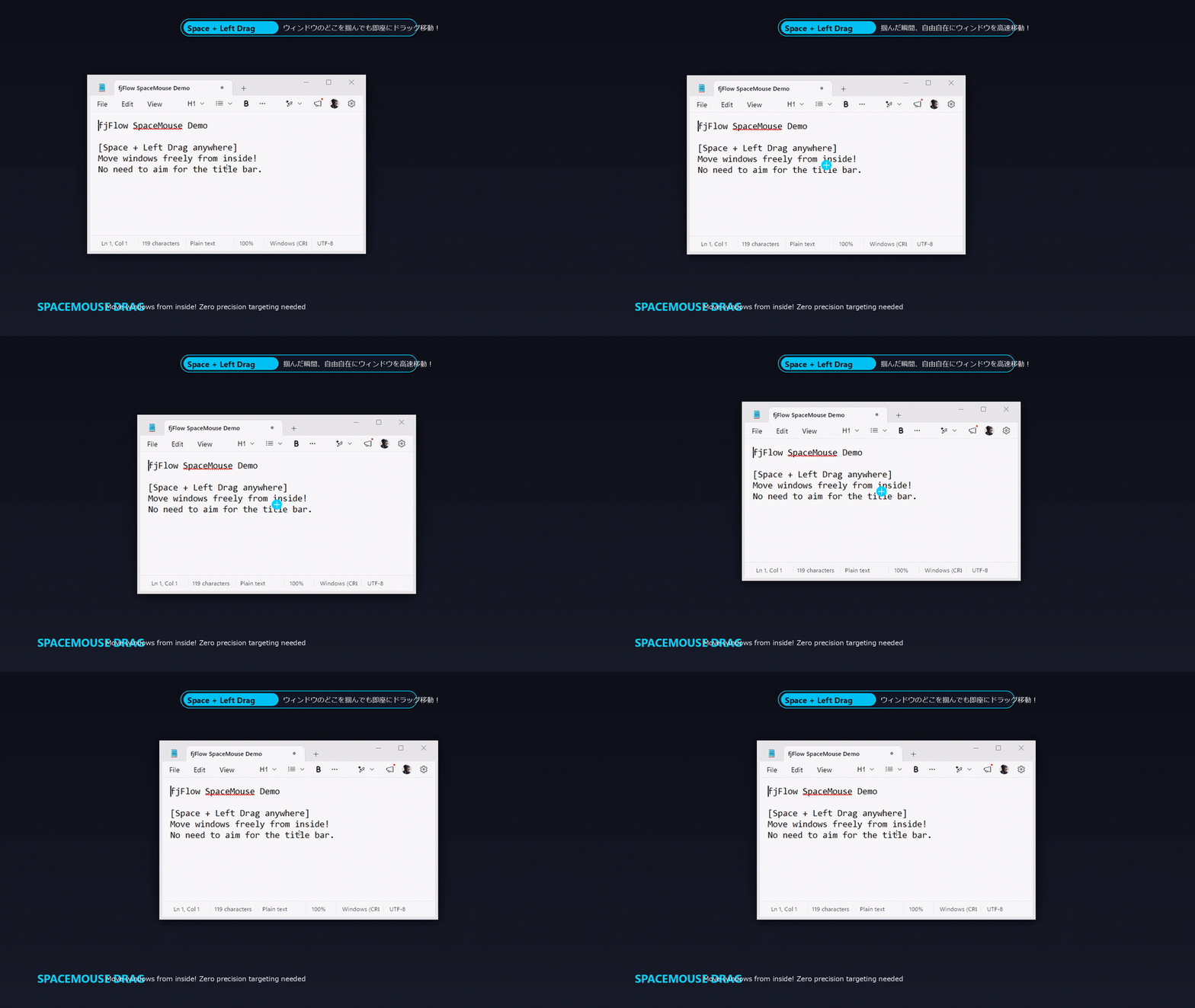
Figure: SpaceMouse (Live Demo) - Hold Space & drag anywhere inside the window to move freely. No need to aim for the title bar.
5. UI Hint Navigation: Keyboard-Driven Control of Any Screen Element
Control every button, link, and input box across your desktop entirely from the keyboard. Press Space + m to overlay elegant 2-character hint badges across the screen. Type the 2 letters to jump and click instantly—no mouse required.
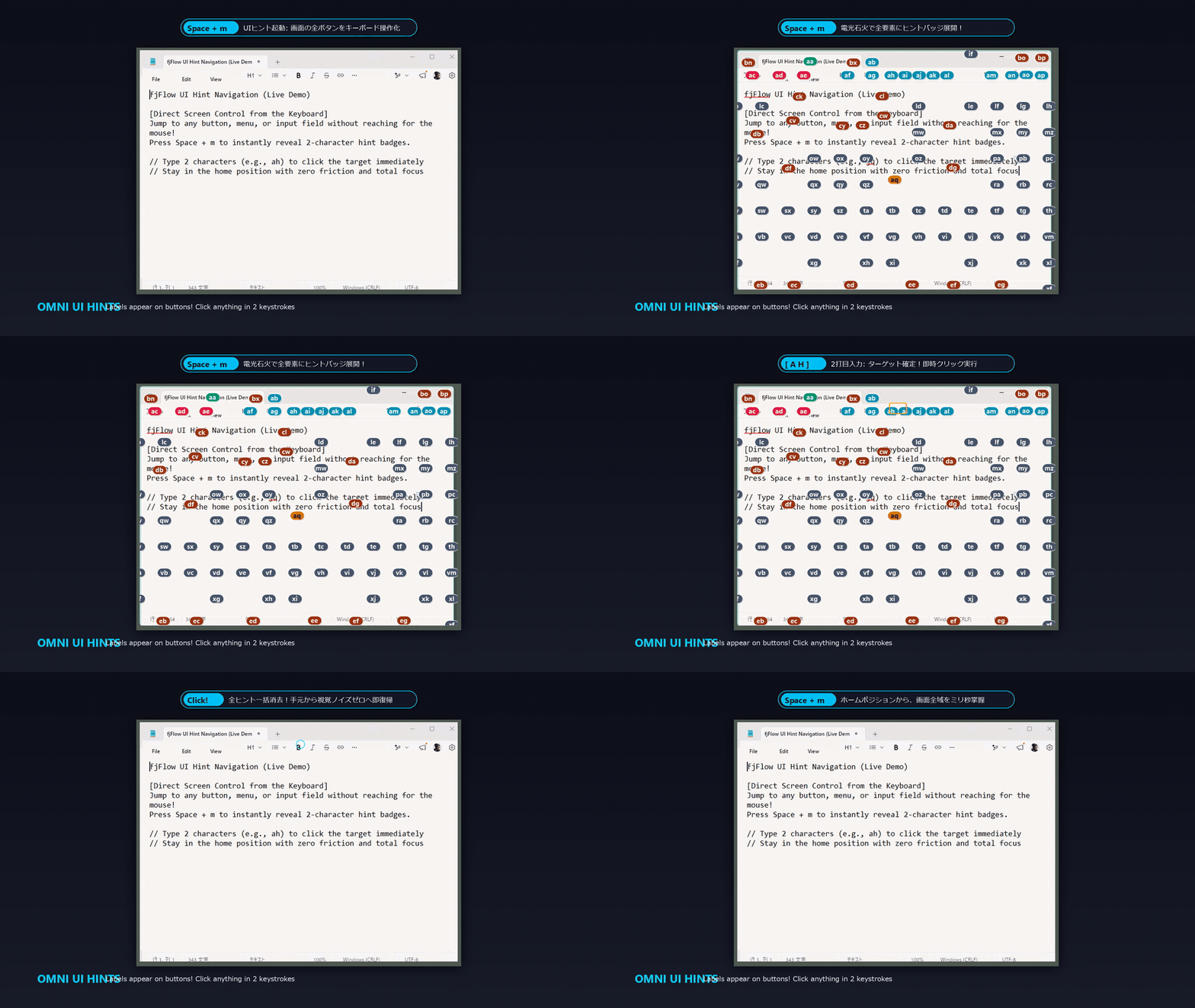
Figure: UI Hint Navigation (Live Demo) - Hold Space + m to reveal 2-character badges on all interactive elements. Type 2 keys (e.g., Bold button [jq]) to jump and click instantly with ripple feedback.
6. UI Smart Snap (Aim Assist): Two-Stage Mouse Targeting Assistance
Aiming at tiny close buttons, checkboxes, or toolbar icons on high-resolution monitors often causes subtle wrist strain. UI Smart Snap (Aim Assist) reduces fine-motor micro-adjustments using a non-intrusive two-stage flow:
- Preview Highlight (
PREVIEW): When the mouse stops near a clickable UI element (within a50pxdefault radius), fjFlow first outlines the target in blue (#0078D7) after60mswithout moving your cursor. - Auto-Snap (
SNAPPED): If you remain still for the Snap Grace Delay (0.50sdefault), the cursor gently snaps to the center of the element and the border turns red (#FF0000), ready to click. Moving the mouse by3pxor more immediately cancels the snap so manual control always comes first.
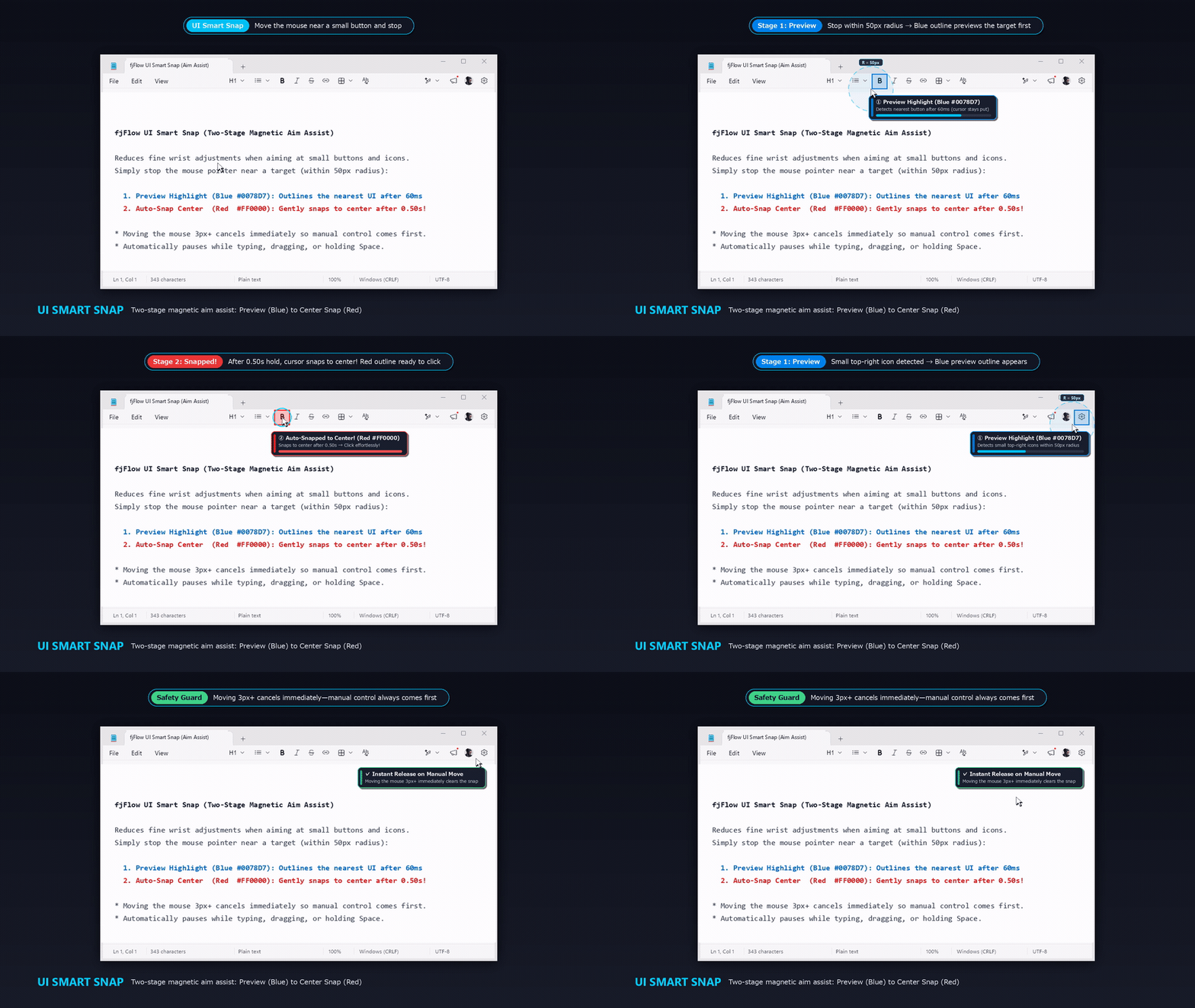
Figure: UI Smart Snap (Live Demo) - Stop near a small button (within 50px) to show a blue preview outline after 60ms, hold for 0.50s to snap to the center with a red outline, or move 3px+ to release immediately.
Caret Zoom (Magnifier) & Active Line Highlight
- Caret Zoom: Press
F9to magnify the region around the caret into a 2.0x horizontal banner, tracking cursor navigation in real-time. - Active Line Highlight: Press
F8to illuminate the active line while dimming the surrounding display.
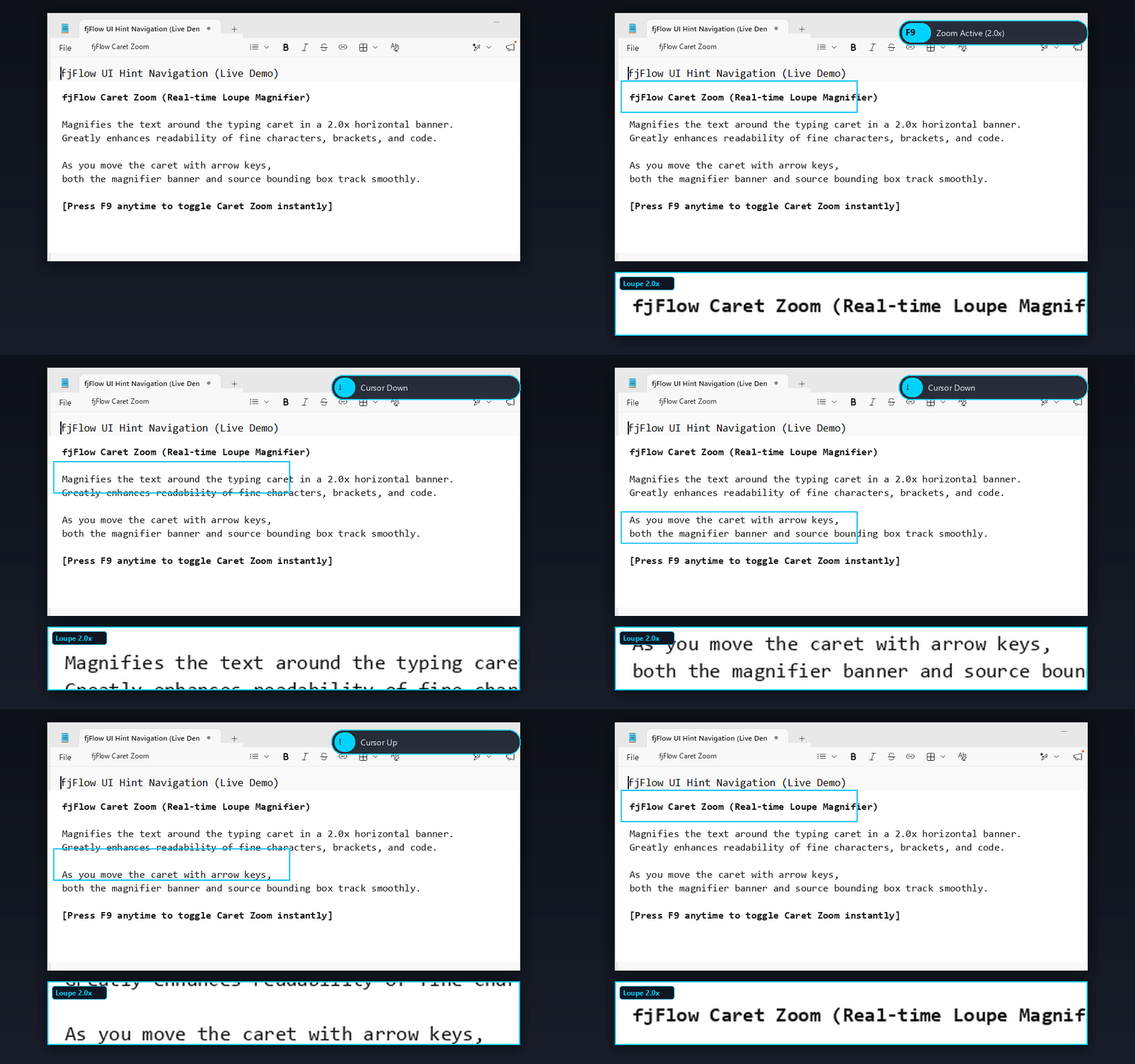
Figure: Caret Zoom Live Demo - Press F9 to magnify the line around the caret as a 2.0x horizontal banner, tracking cursor navigation in real-time.
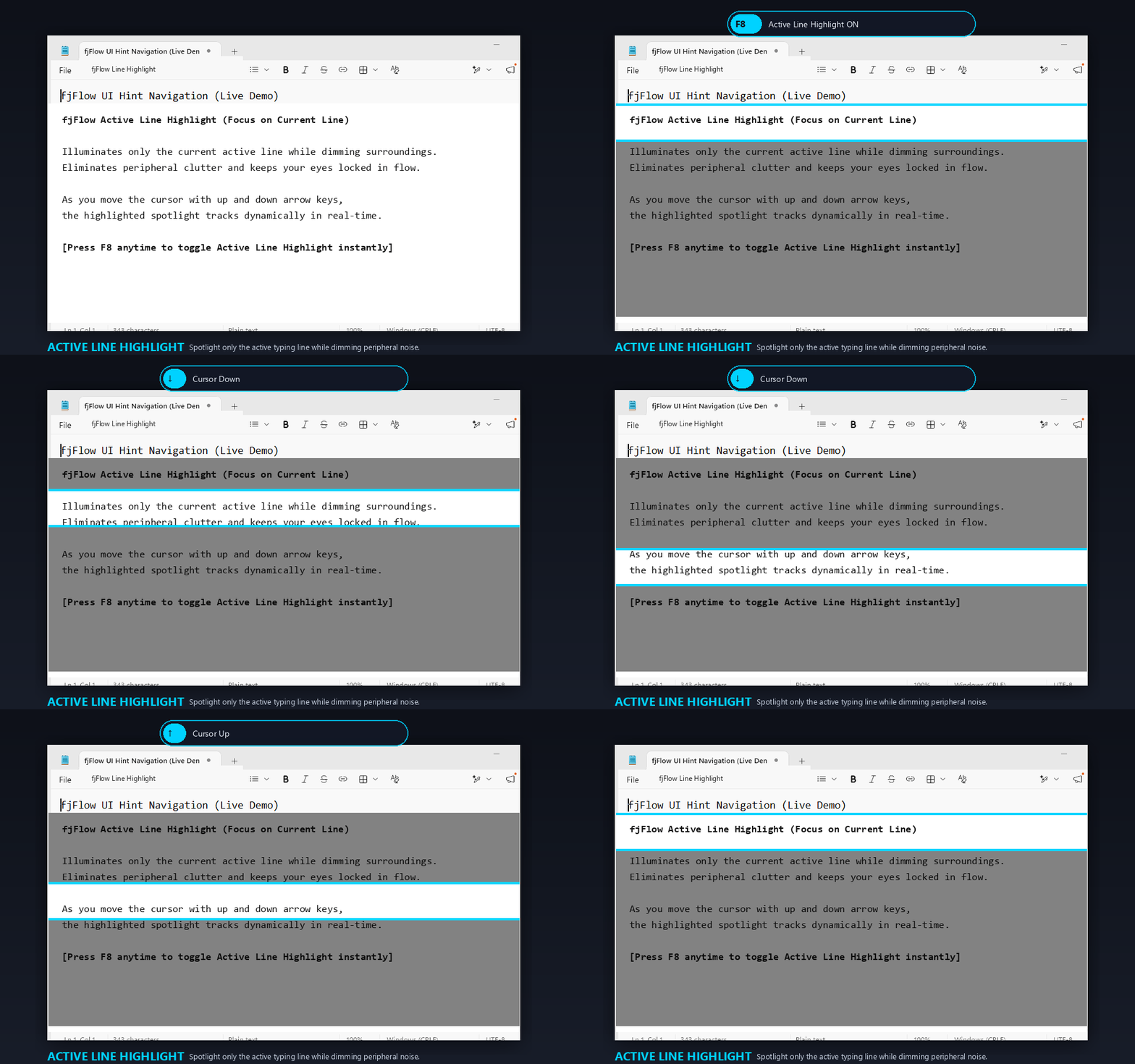
Figure: Active Line Highlight - Press F8 to illuminate the active line while dimming the surroundings, tracking cursor navigation in real-time.
Technical Focus and Design Principles
To ensure a smooth and uninterrupted typing experience, FJ Flow adheres strictly to the following technical principles:
- Completely Offline & Privacy-First: Zero external network communication. All captured keystroke data is processed purely in memory and never transmitted externally, ensuring strict security and privacy.
- Ultra-Low Latency & Lightweight Operation: Built with AutoHotkey v2 to achieve zero input latency and optimal memory efficiency. It runs in the background as a virtually weightless utility.
- Powerful Accessibility Features: Includes Caret Zoom (magnifier) to support low vision and eye fatigue, as well as Active Line Highlighting for live coding, presentations, and large monitors.
Vision: A Seamless Experience for Every “Writer”
FJ Flow aims to unlock peak typing efficiency using standard Windows keyboards—without requiring expensive specialized hardware or complex configurations.
Whether you are a programmer, a writer, or someone who benefits from accessibility assistance, FJ Flow is committed to delivering a smooth, stress-free typing experience free from input errors.