fjFlow Key Extension Comprehensive User Guide
Master all home-row typing layers, Space Shift navigation, combos, and hold-to-symbol mappings without moving your hands.
fjFlow Key Extension Comprehensive User Guide
Master all home-row typing layers, Space Shift navigation, combos, and hold-to-symbol mappings without moving your hands.
fjFlow Key Extension provides an integrated, ergonomic multi-layer system that lets you perform text editing, cursor navigation, numeric keypad input, window management, and modifier combinations entirely from the keyboard’s home row.
Table of Contents
- 1. Ergonomics & Home Row Philosophy
- 2. Three Input Modes: Space Shift, Hold, and Combo
- 3. L0 Layer: Symbols & Pairs during Standard Typing
- 4. Space Shift (SS) Layer: Full Navigation & Editing
- 5. L1 Layer: Function Keys (F1–F12)
- 6. L2 Layer: Custom Layer & Mouse Scroll
- 7. On-Screen Key Guide HUD
- 8. Customization via Settings GUI
- 9. Quick Reference Cheat Sheet
1. Ergonomics & Home Row Philosophy
The core goal of fjFlow is zero hand and wrist displacement.
- Right Hand: Cursor navigation, Enter, and jumping.
- Left Hand: Deletion (BS/Del), modifier locking (Ctrl/Alt/Win/Shift), and window management.
- Thumbs:
Spacekey activates the secondary operation layer (Space Shift) without disrupting normal space inputs.
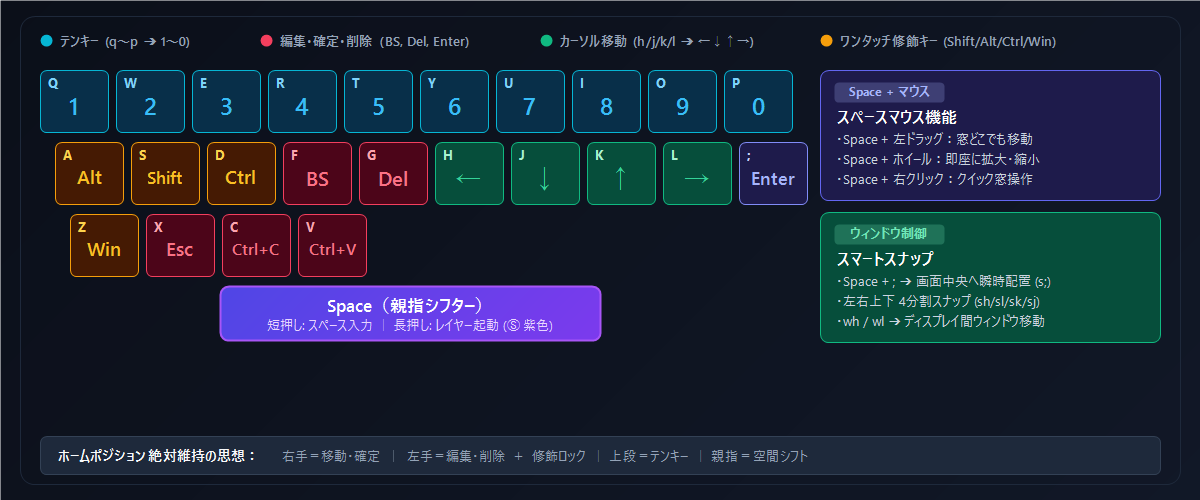
Figure: Space Shift (SS) Integrated Home-Row Operations
2. Three Input Modes: Space Shift, Hold, and Combo
- Space Shift (Hold Space): Holding
Spacefor 300ms unlocks the comprehensive SS layer. A quick tap sends a regular space immediately. - Hold (
<key>): Holding a key down produces symbols or special commands (e.g.,<h>➔Home). - Sequence Combos & Snippets (2 to 5 Keystrokes): Rapid sequential keystrokes trigger symbols or expand text snippets (e.g.,
eq➔=,btw➔by the way,s;➔{MoveCenter}). Powered by a suppression-first FSM, keystrokes are withheld during evaluation so zero Backspaces are sent, preventing accidental deletion of existing text in any IME environment.
3. L0 Layer: Symbols, Combos & Snippet Expansion
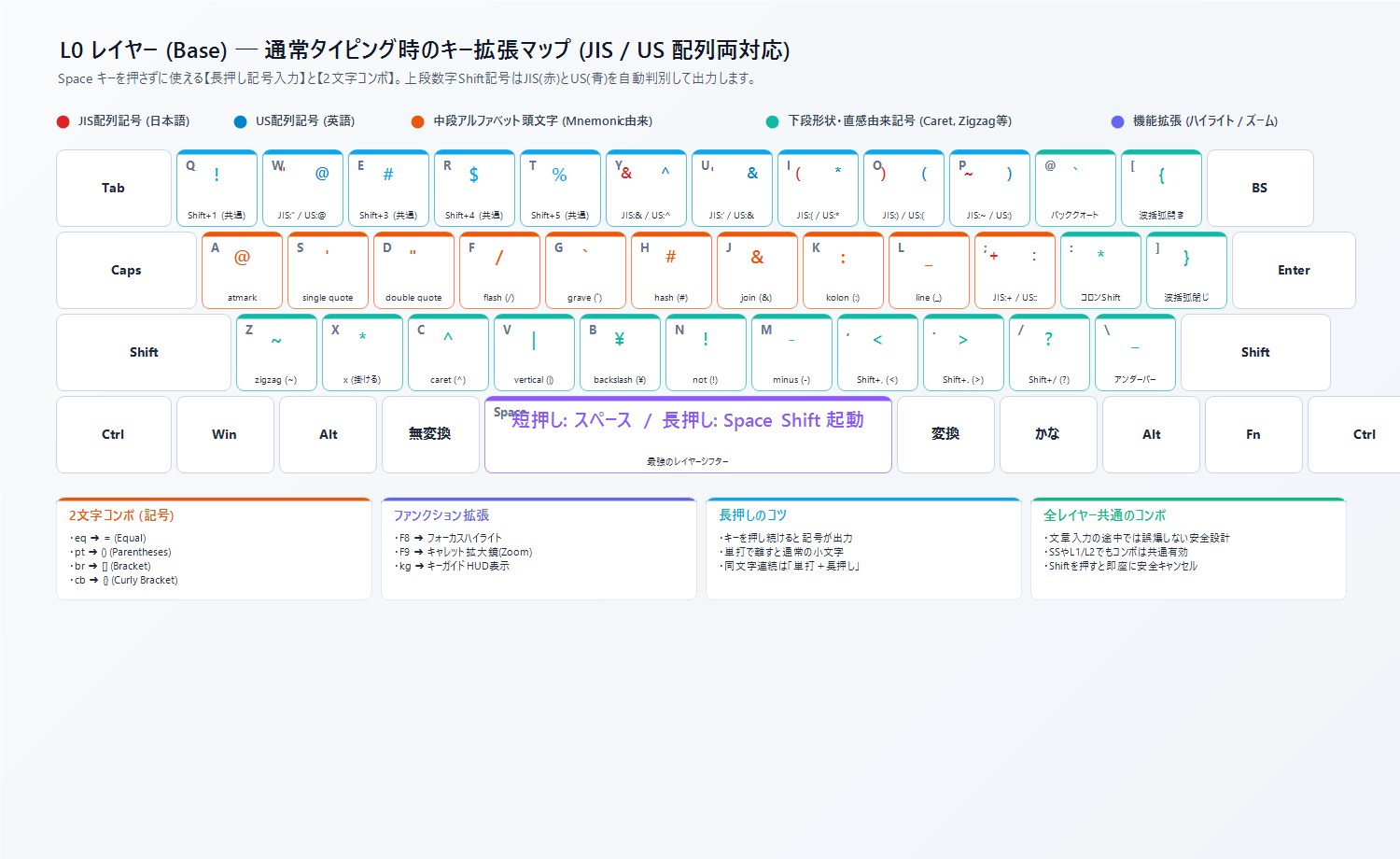
While typing normally in the default layer (L0):
- Top row hold (
qtop): Outputs Shift symbols (!@#$%^&*()). - Home row hold (
ato;): Outputs mnemonic symbols (@'"/`#&:_+). - 2-key combos: Type
eqfor=,ptfor(),brfor[],cbfor{}. - 3 to 5-key snippets: Type
btwforby the way,azasuforありがとうございます,otkforお疲れ様です,mail1for your email address. - Cancel safely: Tap
Shiftwhile typing a combo to immediately flush pending keys as raw lowercase letters.
4. Space Shift (SS) Layer: Full Navigation & Editing
4.1 Vim-like Cursor Movement
Hold Space and press:
h:←(Left)j:↓(Down)k:↑(Up)l:→(Right)
Hold Space and hold down:
<h>:{Home}(Beginning of line)<l>:{End}(End of line)<k>:{PgUp}(Page Up)<j>:{PgDn}(Page Down)
4.2 Enter, Deletion, and Clipboard
Space + ;:{Enter}Space + f:BackspaceSpace + g:DeleteSpace + c:Ctrl+C(Copy)Space + v:Ctrl+V(Paste)Space + <v>: Unformatted clean paste
4.3 Home Row Numeric Keypad
Space + qthroughp: Outputs numbers1through0.
4.4 One-Touch Modifier Locks
Space + a:{AltLock}Space + s:{ShiftLock}Space + d:{CtrlLock}Space + z:{WinLock}Space + <s>:{StickyShiftLock}(Sticky until explicit unlock)Space + <x>:{UnlockAll}(Instantly dismiss all locks)
4.5 Line Jump and Delete Line
Space + dl: Delete entire active line.Space + <f>: Delete from cursor to start of line.Space + <g>: Delete from cursor to end of line.
4.6 Window Snapping & Centering
Space + s;:{MoveCenter}(Center active window on current monitor)Space + sh/sl/sk/sj: Snap Left / Right / Top / BottomSpace + wh/wl: Teleport active window to Left/Right monitor
4.7 Keyboard UI Clicking (UI Hints)
Space + m:{HintClickAll}(Show 2-letter hint badges and click immediately)Space + <m>:{HintAll}(Show hint badges, jump pointer, and show mouse guide)Space + mh:{MouseHistory}(Jump to recently clicked coordinates)
4.8 Instant Macro & Repeat
Space + ,: Record/stop instant keystroke macroSpace + <,>: Execute recorded macroSpace + .: Repeat last typed word/action
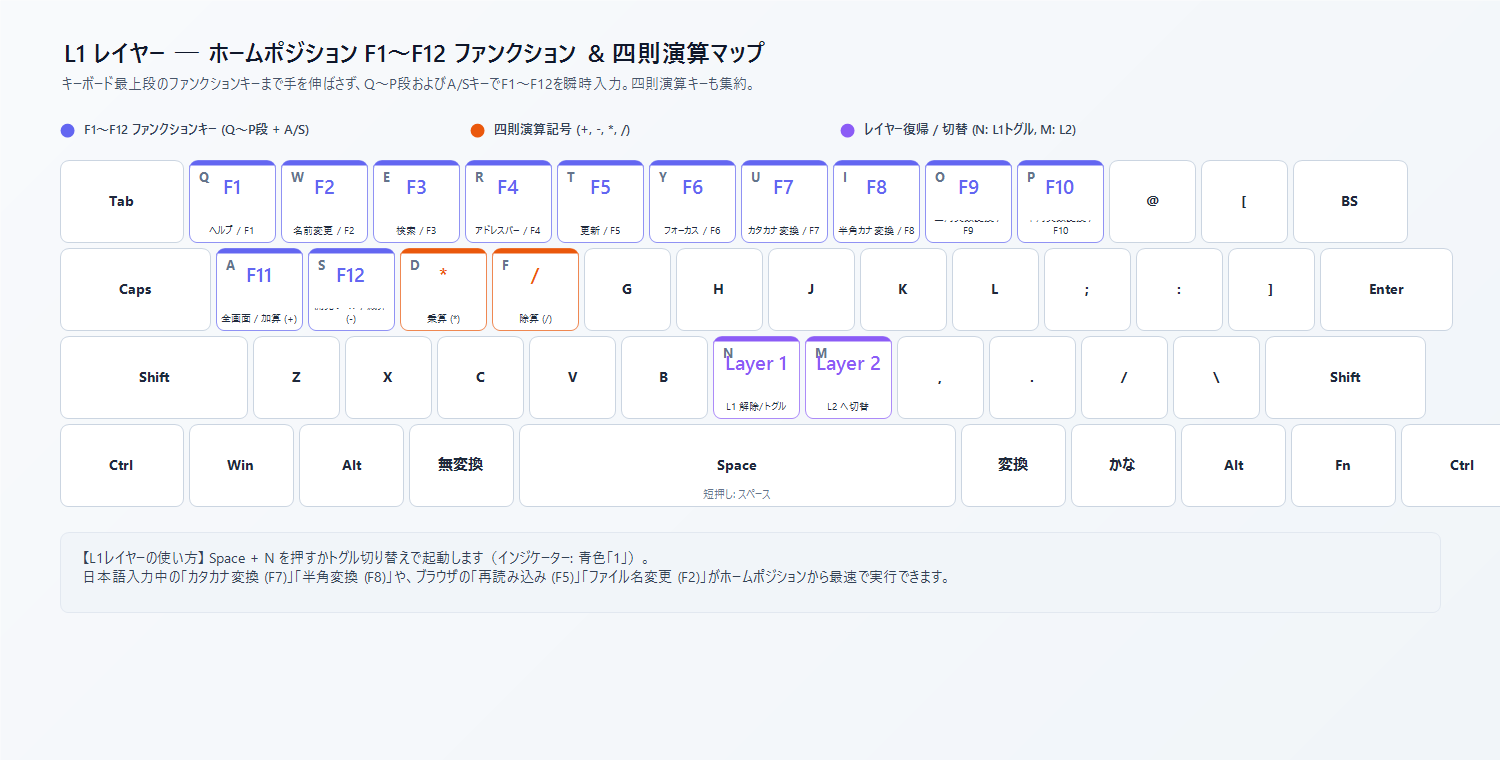
5. L1 Layer: Function Keys (F1–F12)
Activate via Space + n:
qtop:F1toF10a/s:F11/F12
6. L2 Layer: Custom Layer & Mouse Scroll
Activate via Space + <n> (Hold):
- Configurable in
KeyExt.jsonor Settings GUI. - Supports wheel scrolling:
WheelLeft,WheelDown,WheelUp,WheelRight.
7. On-Screen Key Guide HUD
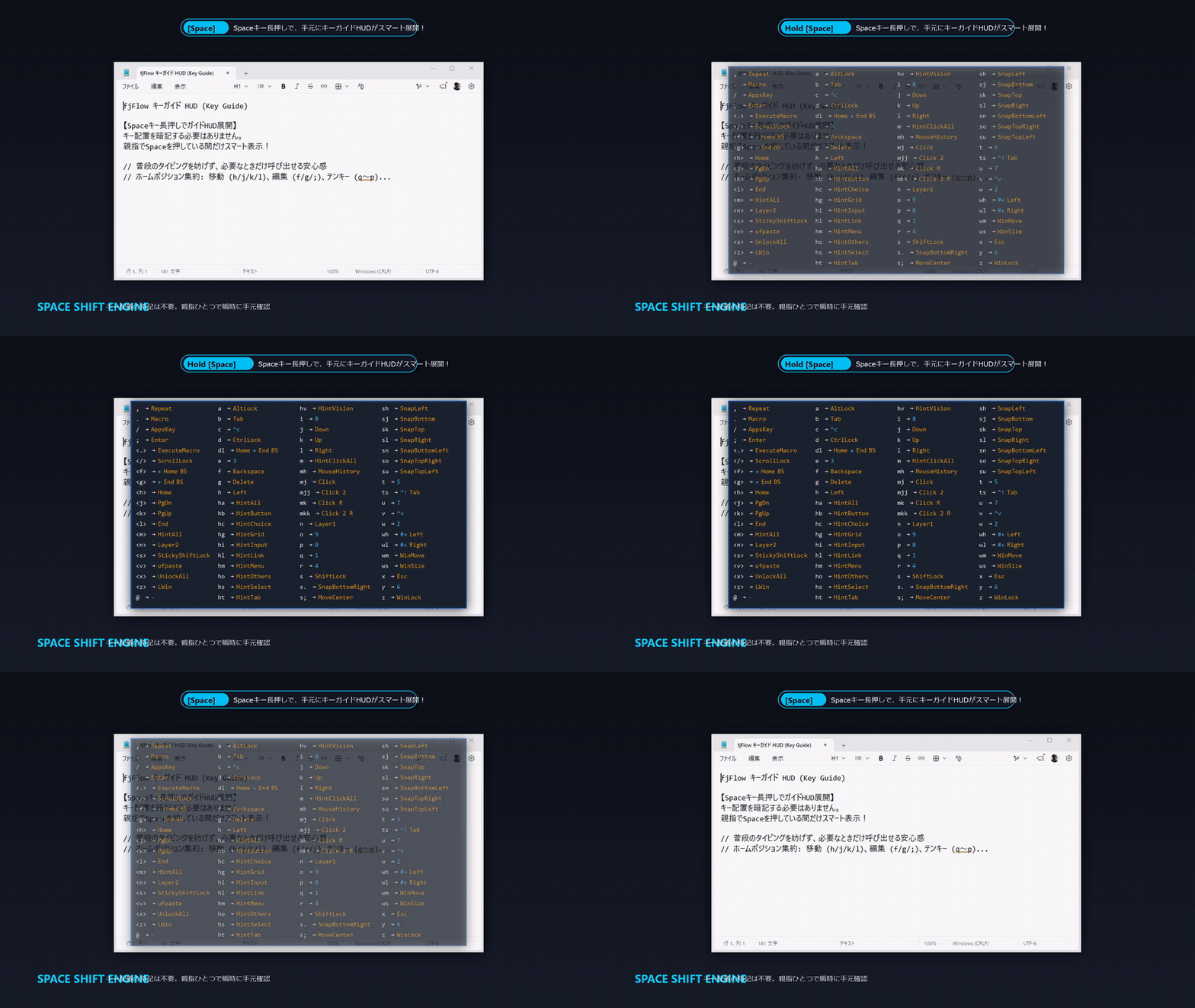
Holding Space displays a semi-transparent HUD showing available shortcuts in real time. Pressing any mapped key or releasing Space dismisses the HUD instantly.
8. Customization via Settings GUI
Right-click the tray icon and select Settings > Key Extensions:
8.1 Key Extension Presets
Switch all key mappings at once based on your experience level:
- Basic (Default): Enables core Space Shift navigation (
h/j/k/l), deletion (fBS /gDel), Enter (;), clipboard (cCopy /vPaste), and UI Hints (m). Safe for beginners with zero accidental symbol triggers. - Advanced: Adds Base layer symbol holds, 2-key sequence combos, Numpad row (
q–p), modifier locks (a/s/d/z), and QuickDrag (md). - Full Set: Completely unlocks all layers (L0, SS, L1, L2) and special window combos.
[!NOTE] The active preset button is automatically highlighted in blue. Modifying checkboxes manually will clear the highlight to reflect custom configurations.
8.2 Timing & Mapping Adjustments
- Adjust Hold Timeout (50ms – 500ms).
- Configure Combo Interval and Silence Delays.
- Add or modify custom rules per layer.
9. Quick Reference Cheat Sheet
| Key Combination | Output Action | Note |
|---|---|---|
Space + h / j / k / l |
← / ↓ / ↑ / → |
Vim-like movement |
Space + <h> / <l> |
{Home} / {End} |
Line jump |
Space + ; |
{Enter} |
Line break |
Space + f / g |
Backspace / Delete |
Single character delete |
Space + dl |
Delete line | Delete entire active line |
Space + q ~ p |
1 ~ 0 |
Numeric keypad |
Space + s; |
{MoveCenter} |
Center active window |
Space + m |
{HintClickAll} |
Click screen buttons by keyboard |
Space + a / s / d / z |
Alt / Shift / Ctrl / Win Lock |
One-shot modifier locks |