Key Extension
The Key Extension feature transforms your keyboard into a multi-layered input system, allowing you to perform navigation...
Key Extension
The Key Extension feature transforms your keyboard into a multi-layered input system, allowing you to perform navigation, symbol input, text editing, window snapping, and mouse emulation all from the home row without shifting your hands.
Extension Layers Overview
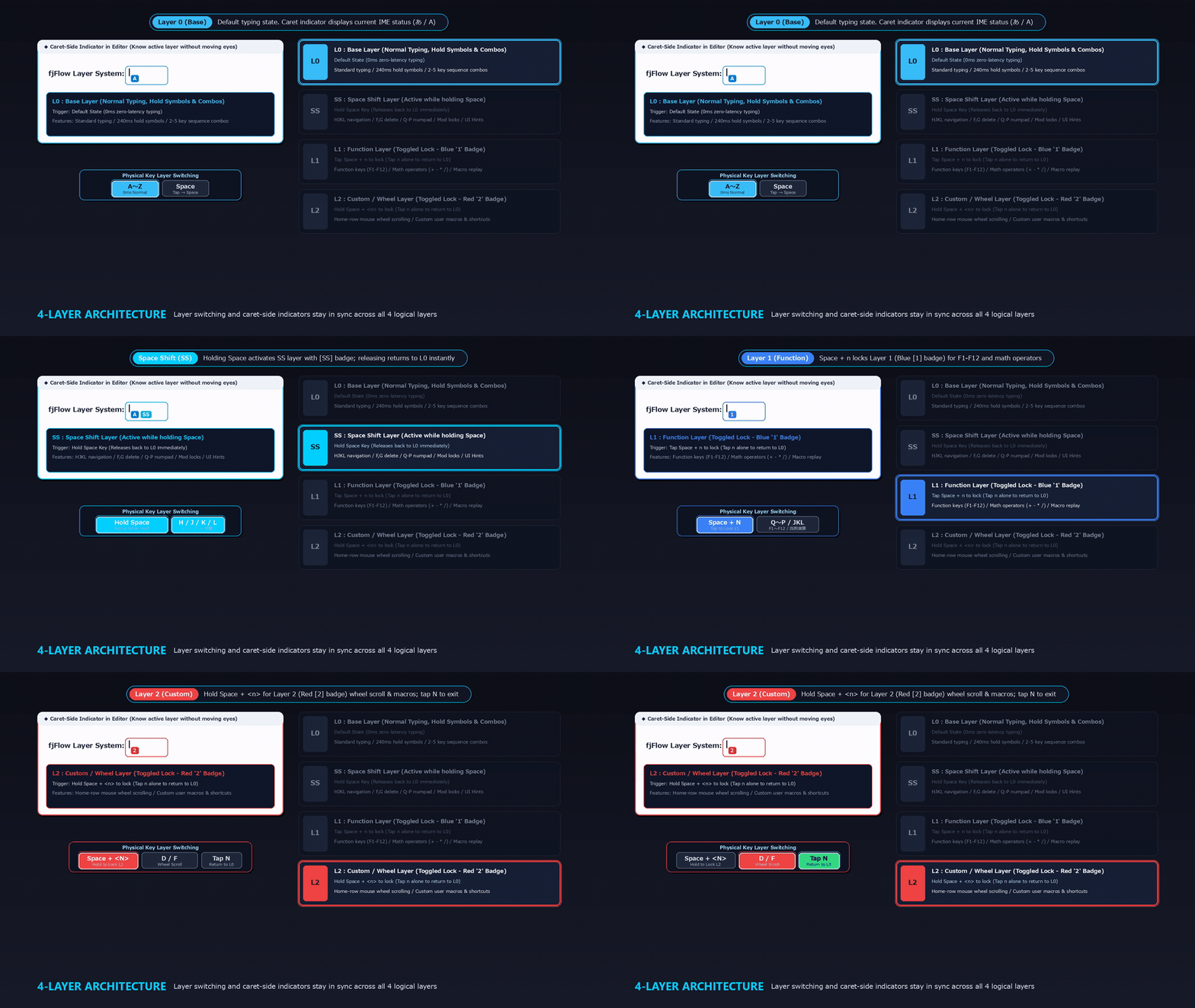 Figure: Real-time synchronization between physical layer switching (L0 / Hold
 Space / Space + n / Space + <n>) and the caret-side indicator (A ➔ SS ➔ Blue 1 ➔ Red 2).
| Layer | Indicator Label | Trigger | Primary Purpose |
|---|---|---|---|
| L0 (Base) | None | Normal typing | Hold-to-type Shift symbols, 2-key mnemonic combos, function shortcuts |
| SS (Space Shift) | SS (Cyan) |
Hold Space key |
Vim-like navigation, line/word editing, Enter/Esc, window snapping, instant macro/repeat, numpad |
| L1 (Layer 1) | 1 (Blue) |
Layer toggle / SS+n |
Numpad digits & arithmetic operators (+, -, *, /) for Excel and calculator work |
| L2 (Layer 2) | 2 (Red) |
Layer toggle / SS+m |
4-way mouse wheel scrolling & programming symbols |
L0 Layer (Normal Typing Key Extensions)
Enables quick symbol and bracket entry without reaching for the number row or straining the pinky with Shift.
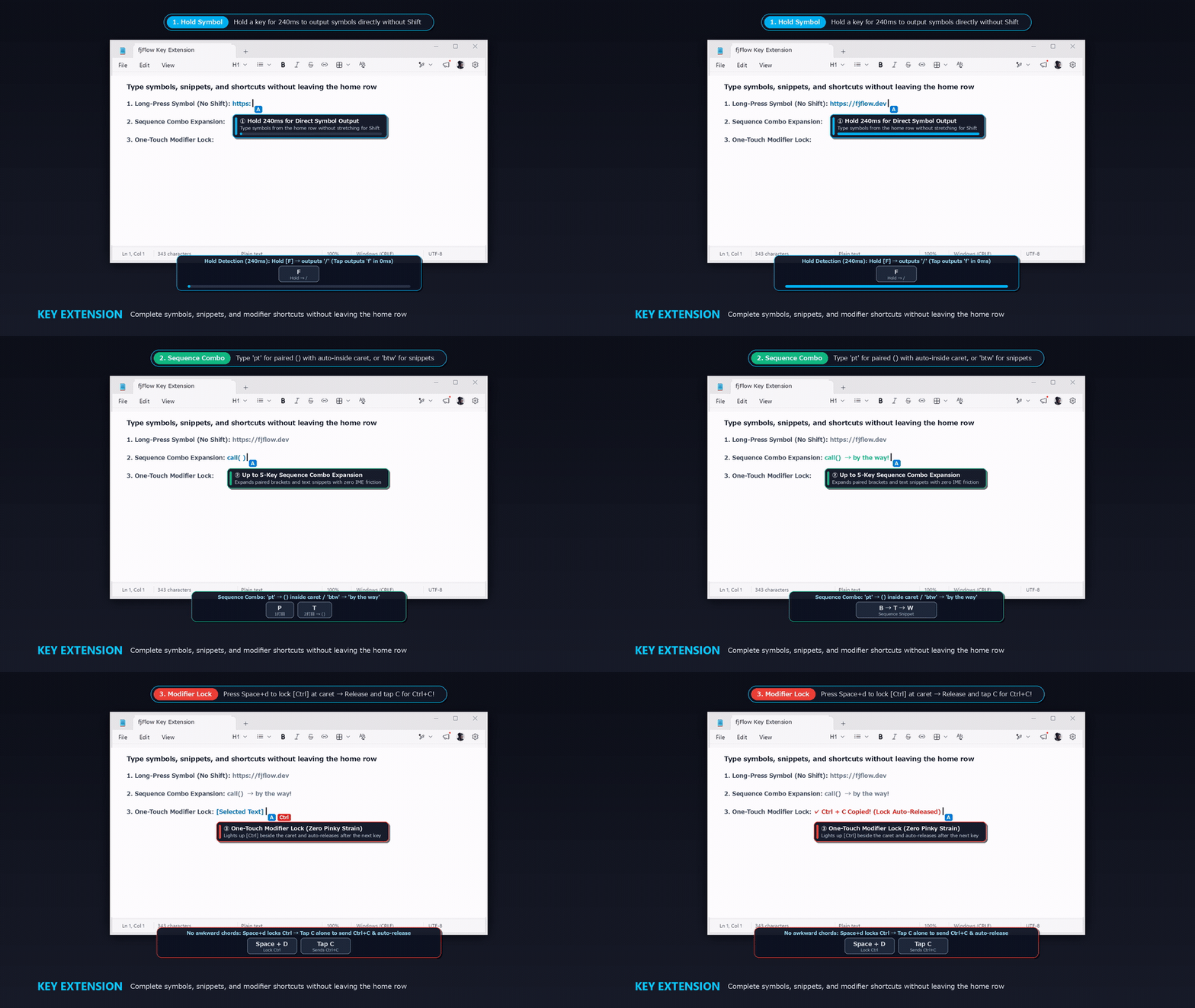 Figure: Live workflow showing (1) 240ms hold-to-type symbol (
f ➔ /), (2) sequence combo expansion (pt ➔ (), btw ➔ snippet), and (3) one-touch modifier lock (Space + d ➔ Ctrl lock ➔ tap c).
1. Hold-to-Type Symbols
Hold down a key for the configured duration (default: 300ms) after a brief silence to output the symbol immediately without pressing Shift.
Systematic Key Placement Rules
- Top Row (
qtop): Directly maps to the shifted symbols of the top number keys1to0(+1to+0). - Home Row (
ato;) & Bottom Row (zto/): Meaningfully mapped based on mnemonics (initial letters) and symbol shapes. Access all essential symbols without leaving the home position.
| Row | Input Key (Hold) | Output Symbol | Mnemonic & Design Rationale |
|---|---|---|---|
| Top | <q> to <p> |
! @ # $ % ^ & * ( ) |
Number row 1 to 0 shifted symbols (+1 to +0) |
| Home | <a> |
@ |
atmark |
<s> |
' |
single quote | |
<d> |
" |
double quote | |
<f> |
/ |
Flash / Forward-slash (URLs, paths, dates) | |
<g> |
` |
Grave accent (Markdown code spans) | |
<h> |
# |
Hash / Header (Markdown headings, tags) | |
<j> |
& |
Join (AND symbol, logical &&) |
|
<k> |
: |
Kolon (Colon for time, dictionaries, Python) | |
<l> |
_ |
Low line / Line (Underscore for snake_case) |
|
<;> |
+; |
Semicolon Shift symbol (JIS: + / US: :) |
|
| Bottom | <z> |
~ |
Zigzag (Tilde for ranges, home ~/) |
<x> |
* |
X (Multiplication asterisk, wildcards) | |
<c> |
^ |
Caret (Exponentiation, regex) | |
<v> |
` | ` | |
<b> |
\ |
Backslash (Escape sequences \n, paths) |
|
<n> |
! |
Not (Exclamation / NOT operator !=, !flag) |
|
<m> |
- |
minus / hyphen | |
<,> |
< |
Comma Shift symbol (Left angle bracket / less than) | |
<.> |
> |
Period Shift symbol (Right angle bracket / greater than) | |
</> |
? |
Slash Shift symbol (Question mark) |
2. Sequence Combos & Snippets (Up to 5 Keystrokes)
Type 2 to 5 keys in rapid sequence. Following a brief post-silence (scaled by length), the assigned symbol or text snippet is directly expanded.
2-Key Combos (Symbols & Pair Brackets)
| Combo | Output | Mnemonic / Purpose |
|---|---|---|
eq |
= |
equal |
pt |
(){Left} |
parentheses (places cursor inside) |
br |
[]{Left} |
brackets (places cursor inside) |
cb |
{{}{}}{Left} |
curly braces (places cursor inside) |
kg |
{KeyGuide} |
key guide (toggles key guide HUD popup) |
3 to 5-Key Snippets (Abbreviations & Phrase Expansions)
- English Abbreviations:
btw➔by the way,omw➔on my way,afaik➔as far as I know - Japanese Greetings:
azasu➔ありがとうございます,otk➔お疲れ様です,yoros➔よろしくお願いいたします - System & Contact:
mail1➔ Your registered email,date➔ Current date
[!NOTE] Suppression-First Architecture vs. Post-hoc Delete Traditional snippet expanders output keys to the screen and later send Backspaces to erase them. In East Asian IME or non-English environments, key count and character count often diverge (e.g.
azasu= 5 keystrokes becoming 3 charactersあざす), causing destructive bugs that erase pre-existing text. fjFlow FSM suppresses candidate keystrokes during evaluation and sends zero Backspaces upon match. Text appears cleanly without flicker, fully decoupled from IME state. PressingShiftinstantly cancels pending keys and flushes raw characters safely.
3. Function Key Enhancements
| Input Key | Output Action | Purpose |
|---|---|---|
F8 |
{Highlight} |
Toggles focus line highlight |
F9 |
{Zoom} |
Toggles caret zoom loupe |
SS (Space Shift) Layer Mappings
Activated while holding down the Space key with your thumb.
1. Cursor Navigation (Right Hand Home Row)
| Input Key | Output Action | Description |
|---|---|---|
h / j / k / l |
← / ↓ / ↑ / → |
Vim standard navigation |
<h> (Hold) |
{Home} |
Jump to start of line |
<l> (Hold) |
{End} |
Jump to end of line |
<k> (Hold) |
{PgUp} |
Page Up |
<j> (Hold) |
{PgDn} |
Page Down |
2. Editing, Clipboard, Confirm & Delete (Left Hand & Right Home Edge)
| Input Key | Output Action | Description |
|---|---|---|
; |
{Enter} |
Confirm/Enter at the home row right edge without reaching for Enter |
f |
{Backspace} |
Delete character to the left with left index finger |
g |
{Delete} |
Delete character to the right |
<f> (Hold) |
+{Home}{BS} |
Delete from cursor to line start |
<g> (Hold) |
+{End}{BS} |
Delete from cursor to line end |
dl (Combo) |
{Home}+{End}{BS} |
Delete entire current line (delete line) |
x |
{Esc} |
Escape / close dialogs |
<x> (Hold) |
{UnlockAll} |
Release all modifier locks immediately |
c |
^c |
Copy |
v |
^v |
Paste |
<v> (Hold) |
{ufpaste} |
Unformatted plain-text paste |
b |
{Tab} |
Tab / indent |
/ |
{AppsKey} |
Open context menu (Right Click) |
3. Instant Macro & Repeat
| Input Key | Output Action | Description |
|---|---|---|
. |
{Macro} |
Start / Stop instant macro recording |
<.> (Hold) |
{ExecuteMacro} |
Play recorded instant macro |
, |
{Repeat} |
Repeat last input/keystrokes |
4. Window Snapping & Management (s Prefix & Window Controls)
| Input Key | Output Action | Description |
|---|---|---|
s; |
{MoveCenter} |
Center active window on current monitor |
sh / sl |
{SnapLeft} / {SnapRight} |
Snap window to left / right half |
sk / sj |
{SnapTop} / {SnapBottom} |
Snap window to top / bottom half |
su / so |
{SnapTopLeft} / {SnapTopRight} |
Snap window to top-left / top-right corner |
sn / s. |
{SnapBottomLeft} / {SnapBottomRight} |
Snap window to bottom-left / bottom-right corner |
wm / ws |
{WinMove} / {WinSize} |
Move / Resize window using mouse |
wh / wl |
#+{Left} / #+{Right} |
Move window across monitors |
ts |
^!{Tab} |
Task switcher |
5. Numpad Input (Top Row)
| Input Key | Output Action | Description |
|---|---|---|
q w e r t y u i o p |
1 2 3 4 5 6 7 8 9 0 |
Touch type digits without reaching for top number row |
@ |
- |
Minus sign |
6. Modifier Locks & Layer Switching
| Input Key | Output Action | Description |
|---|---|---|
a |
{AltLock} |
One-shot Alt lock |
s |
{ShiftLock} |
One-shot Shift lock |
<s> (Hold) |
{StickyShiftLock} |
Persistent Shift lock until toggled off |
d |
{CtrlLock} |
One-shot Ctrl lock |
z |
{WinLock} |
One-shot Win lock |
n |
{Layer1} |
Switch to Numpad Layer 1 |
<n> (Hold) |
{Layer2} |
Switch to Mouse/Wheel Layer 2 |
</> (Hold) |
{ScrollLock} |
Scroll Lock (replaces arrow keys with mouse wheel scrolling) |
m |
{HintClickAll} |
All UI hints with immediate left click |
<m> (Hold) / ha |
{HintAll} |
All UI hints with cursor jump and click guide |
hg |
{HintGrid} |
Screen-wide Grid Hints (Full screen) |
hv |
{HintVision} |
Screen-wide CV Vision Hints (Full screen UIED/CV detection) |
hi / hb / hl |
{HintInput} / {HintButton} / {HintLink} |
Specialized UI hints (Input / Button / Link) |
hc / hs / ht / hm / ho |
{HintChoice} / {HintSelect} / {HintTab} / {HintMenu} / {HintOthers} |
Specialized UI hints (Choice / Select / Tab / Menu / Others) |
mj / {Click} |
{Click} |
Mouse Left Click |
mjj / {Click 2} |
{Click 2} |
Mouse Left Double-Click |
mk / {Click R} |
{Click R} |
Mouse Right Click |
mkk / {Click 2 R} |
{Click 2 R} |
Mouse Right Double-Click |
{MButton} |
{MButton} |
Middle / wheel mouse button |
{WheelUp} |
{WheelUp} |
Turn mouse wheel upwards (Scroll up) |
{WheelDown} |
{WheelDown} |
Turn mouse wheel downwards (Scroll down) |
{WheelLeft} |
{WheelLeft} |
Turn mouse wheel to left (Scroll left) |
{WheelRight} |
{WheelRight} |
Turn mouse wheel to right (Scroll right) |
mh / {MouseHistory} |
{MouseHistory} |
Mouse Click History Jump (🅰〜🆉) |
{AppsKey} |
{AppsKey} |
Menu key (Opens context menu) |
L1 Layer (F1〜F12 Function Keys)
Input function keys F1〜F12 from the home/upper rows without reaching up to the physical function key row:
| Input Key | Output | Description |
|---|---|---|
q w e r t y u i o p |
{F1} 〜 {F10} |
Direct F1〜F10 keys on upper row |
a s |
{F11} {F12} |
F11 and F12 on home row |
L2 Layer (Custom User Layer)
A dedicated, clean layer for user-defined shortcuts, macros, and text snippets:
- Default State: Clean / unassigned.
- Customization: Easily add, edit, or delete mappings via the Settings GUI or
KeyExt.json. - Activation: Hold
Space + <n>or use the{Layer2}toggle command (Indicator: Red2).
Key Syntax & FSM Engine
FJ Flow uses a deterministic 3-state Finite State Machine (FSM) to prevent key misfires and character reversals.
1. Key Syntax Definitions
a(Plain): Instant Remap (0ms delay).[a](Brackets): Isolated Tap (Requires pre- and post-silence).<a>(Angle brackets): Hold (Triggers on press-and-hold duration).us,dl,s;(Multi-character): Sequence Combo (Executes upon post-silence completion).
2. Key Timing Parameters
KeyExtSilenceTime(Default: 300ms): Threshold for Hold recognition and pre-silence detection.KeyExtComboIntervalTime(Default: 400ms): Allowed gap between sequence keys and post-silence period.KeyExtDoubleTapTotalTime(Default: 400ms): Window for double-tap detection.
Key Extension Guide Popup
When an extension layer is active and input stops for a period (default: 1000ms, configurable), a semi-transparent guide overlay showing active mappings appears next to the caret.
- Auto-Dismiss: Pressing any key instantly hides the popup.
- Customization: Uncheck “Guide” for any key in Settings to hide familiar shortcuts.