Active Line Highlight
Active Line Highlight emphasizes the line of text you are currently editing while applying a dark, semi-transparent mask...
Active Line Highlight
Active Line Highlight emphasizes the line of text you are currently editing while applying a dark, semi-transparent mask over the rest of the screen, helping you maintain focus.
Behavior & Effects
- Screen Dimming Mask:
- Activated by pressing a hotkey (default:
F8). - Dimms the entire screen except for a horizontal banner area (configured height) centered on your caret position.
- Activated by pressing a hotkey (default:
- Ideal for Presentations & Streaming:
- Perfect for coding demonstrations, live streams, or slides, allowing your audience to track exactly where you are editing.
- Also acts as a visual accessibility tool for reading or drafting long documents.
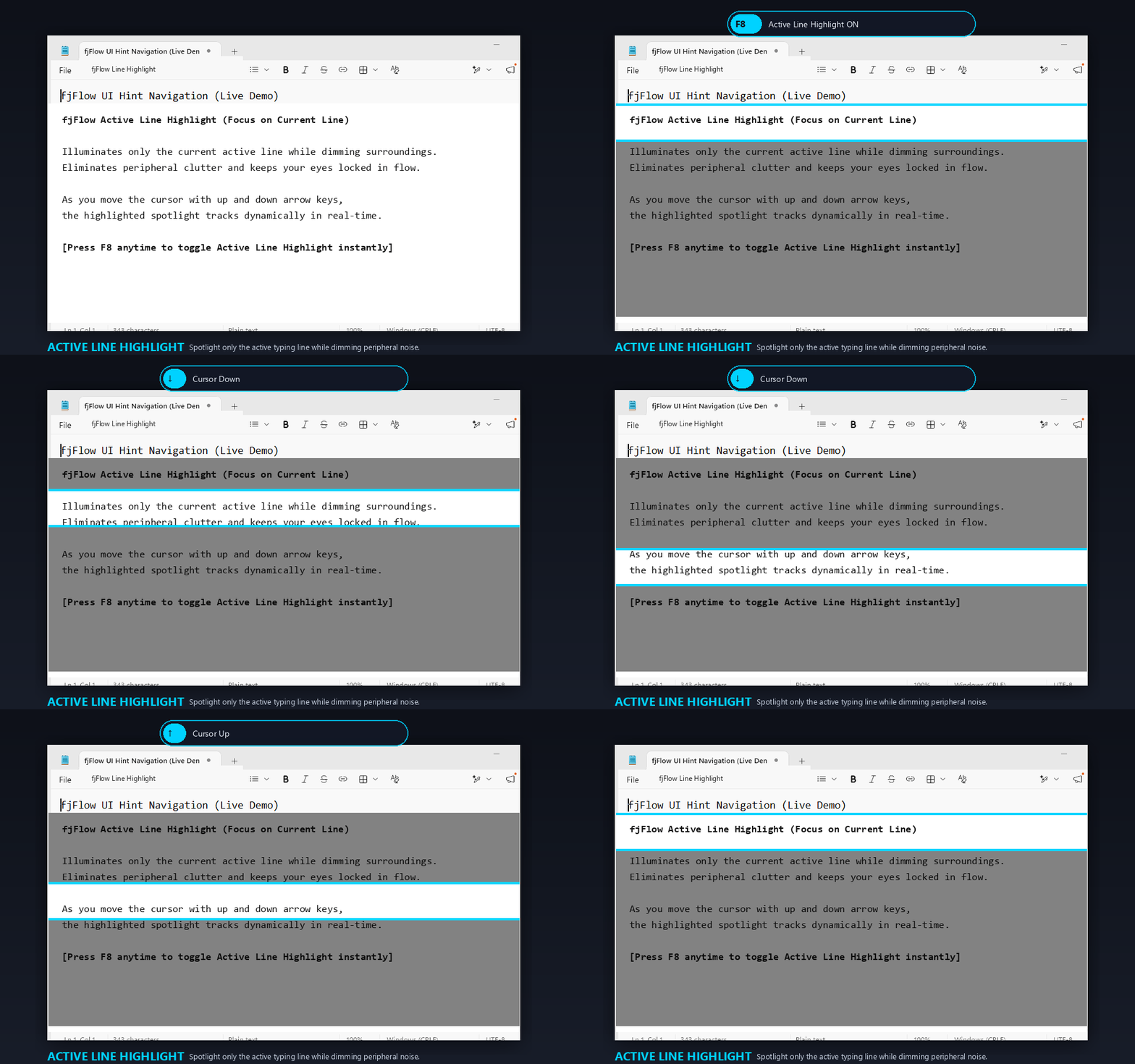
Figure: Active Line Highlight - Press F8 to illuminate the active line while dimming the surroundings. Navigating with ↑ / ↓ cursor keys dynamically tracks the caret in real-time.
Monitor Bounds Detection
- Automatic Alignment:
- Detects which monitor the active window is placed on and applies the dimming overlay to the full resolution bounds of that screen.
- When dragging windows across multiple monitors, the dimming mask automatically snaps and resizes to the correct display.
Customization Options
You can adjust these settings in the “Highlight/Zoom” tab of the settings GUI:
- Hotkey: The shortcut key used to toggle the active line highlight.
- Highlight Height (px): The vertical range (10 to 500 px) centered on the caret that remains illuminated.
- Dimming Opacity (0-255): The opacity of the surrounding dark overlay. Higher values make the background darker.
- Line Style: Set custom colors and borders for the highlight boundary lines.