UI Smart Snap (Aim Assist) & Window Alignment Guide (UI Snap)
Complete guide to UI Smart Snap (Aim Assist) for automatic mouse pointer snapping to nearby buttons and inputs, and Window Alignment Snap for keyboard-driven window positioning.
Two-stage magnetic “Aim Assist” for small UI targets and home-row window alignment shortcuts
This guide covers two features in fjFlow: UI Smart Snap (Aim Assist), which gently assists mouse targeting on small buttons and inputs, and Window Alignment Snap, which arranges active windows across the screen from the keyboard.
Table of Contents
Part 1: UI Smart Snap (Aim Assist)
Aiming at tiny UI controls—such as top-right window close buttons, checkboxes, or reaction emojis in chat apps—requires fine wrist adjustments. UI Smart Snap detects nearby interactive elements when your mouse pointer stops and automatically snaps the cursor to the target’s center. This reduces the effort needed to aim at small buttons, allowing you to click reliably with approximate pointer movements.
1. Two-Stage Assist That Reduces Missed Clicks
To prevent the cursor from jumping unexpectedly while you are moving the mouse, UI Smart Snap uses a two-stage flow from Preview to Snapped:
- Stage 1: Preview Highlight (
Preview)- When pointer movement stops for
60 ms, fjFlow scans for the nearest interactive UI element within the Detection Radius (default:50 px). - Instead of moving the cursor immediately, it first outlines the target element in the Preview Color (default: blue
#0078D7) to show where it will snap.
- When pointer movement stops for
- Stage 2: Automatic Center Snap (
Snapped)- If the pointer remains still for the Snap Delay (default:
0.50 s), the cursor automatically jumps to the center of the highlighted element. - Once snapped, the highlight border switches to the Snapped Color (default: red
#FF0000), ready for an immediate click. - For wide text input fields (over
120 pxwide), the cursor snaps inside the box while preserving your current horizontal X coordinate. - If the pointer stops within
4 pxof the target center initially, it highlights in the Snapped Color immediately without moving the cursor.
- If the pointer remains still for the Snap Delay (default:
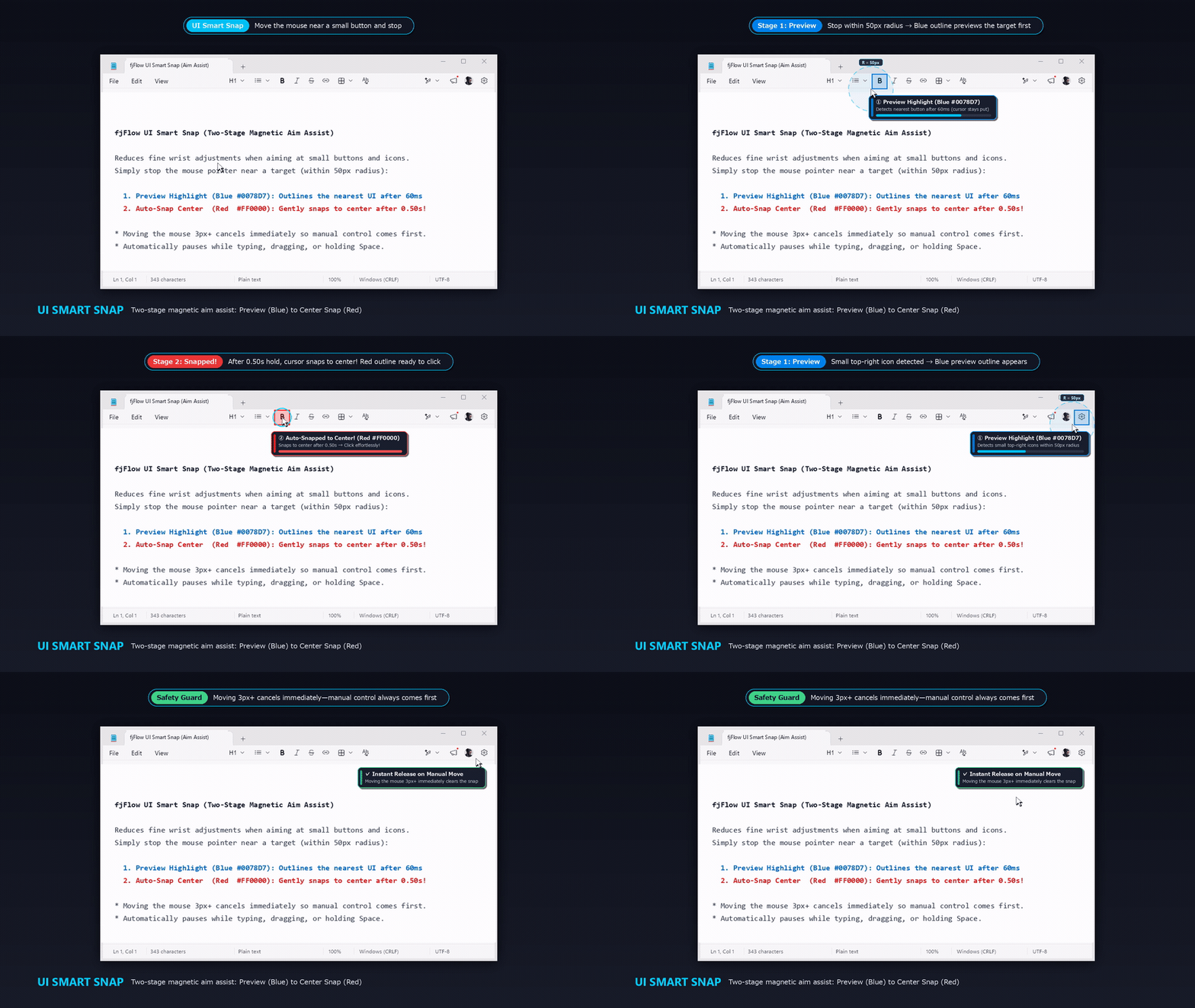
Figure: UI Smart Snap (Live Demo) - Stop within 50 px of a button to trigger a blue preview outline (60 ms), hold for 0.50 s to snap to the center with a red outline, or move 3 px+ to release immediately
2. Non-Intrusive Safety Guards & Hybrid Detection
Multiple safeguards ensure that Aim Assist never fights your manual mouse control:
- Instant Cancellation on Manual Movement:
Moving the mouse by
3 pxor more during preview or after snapping immediately clears the highlight and releases the target. Micro-jitter under2 pxis absorbed so slight hand tremors do not reset the delay timer. - Automatic Bypass While Typing or Dragging:
Snapping is automatically suspended while typing on the keyboard, holding any mouse button (dragging or selecting text), resizing windows, or holding the
Spacekey. - Web, Electron, and Title Bar Support:
Combines local UI Automation
TreeWalkertraversal with a 16-point fallback hit-test probe. Reliably detects standard Win32 controls as well as custom title bar buttons and small icons in browsers and Electron apps (Slack, Discord, VS Code, etc.).
3. Enabling and Tuning Aim Assist
You can customize the detection radius, delay, and highlight colors in the Mouse tab of the Settings GUI.
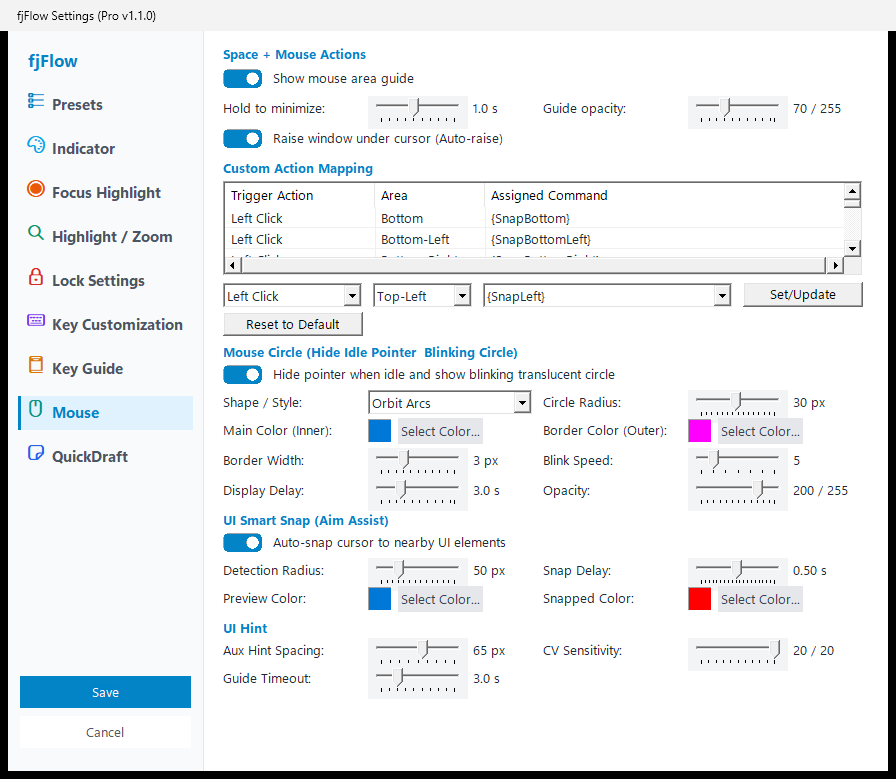
Figure: "Mouse" Tab - Configure detection radius, snap delay, and colors under "UI Smart Snap (Aim Assist)"
- Right-click the fjFlow icon in the system tray and open Settings ➔ Mouse tab.
- Under UI Smart Snap (Aim Assist), configure the following parameters:
- Auto-snap cursor to nearby UI elements: Toggle on to enable Aim Assist (enabled by default in the Accessibility, Presentation, and System Monitor presets).
- Detection Radius: Adjust the search radius around the pointer from
20 pxto150 px(default:50 px). - Snap Delay: Set the waiting time between the preview highlight and the cursor jump from
0.05 sto1.00 s(default:0.50 s). - Preview Color / Snapped Color: Choose distinct border colors for the preview and snapped states.
- Click Save Settings at the bottom-left to apply.
Part 2: Window Alignment Snap (Keyboard Shortcuts)
Dragging window borders with the mouse to arrange side-by-side layouts takes time and hand travel. Window Alignment Snap lets you position the active window to the center, halves, or four corners of the screen directly from the home row.
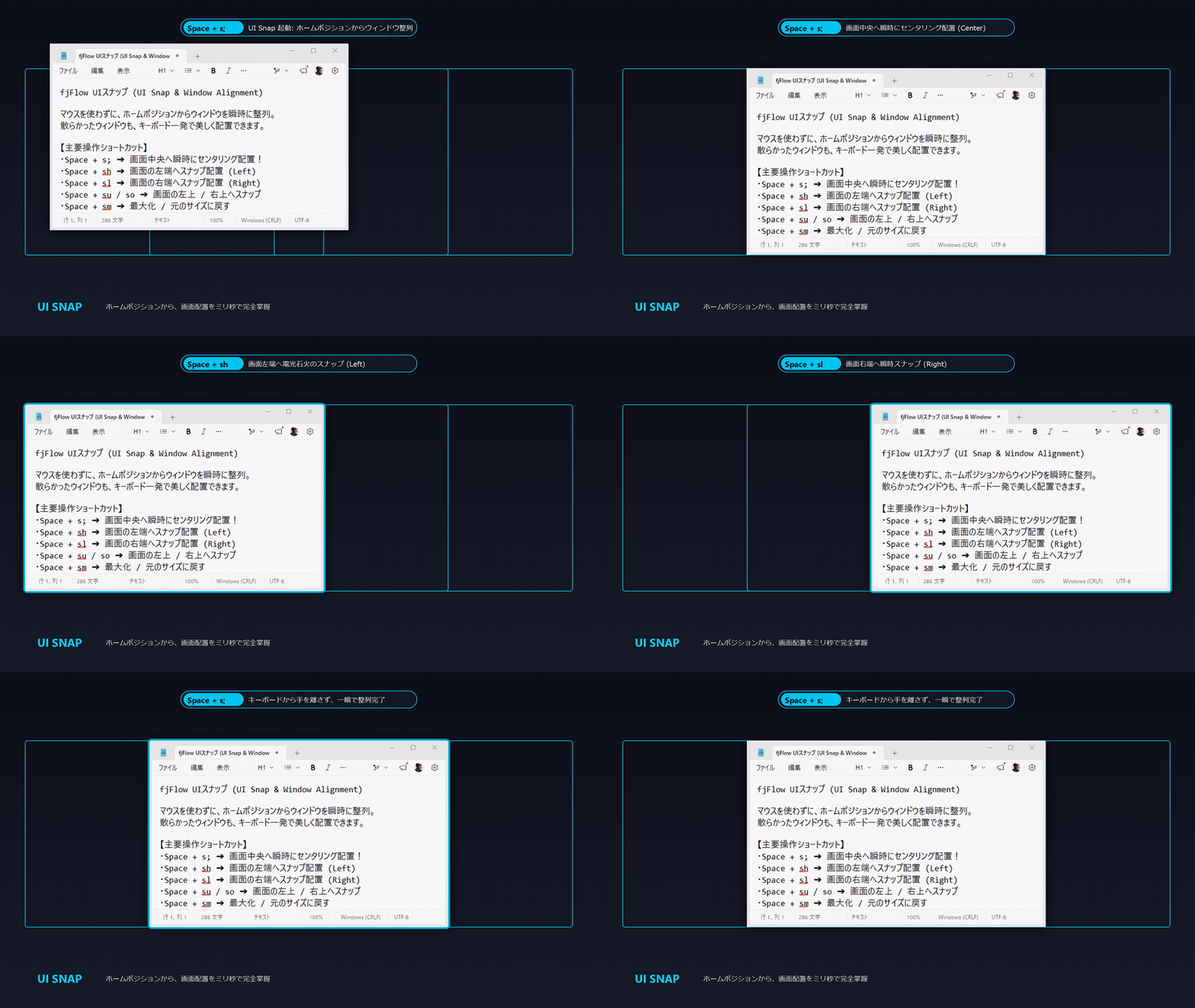
Figure: Window Alignment Snap (Live Demo) - Center windows with Space + s; or snap to screen edges with Space + sh / sl
1. Centering and Basic Window Controls
| Command | Shortcut | Description |
|---|---|---|
{MoveCenter} |
Space + s; |
Moves the active window to the center of the current monitor |
{WinMaxRes} |
Space + sm |
Toggles Maximize / Restore on the active window |
{WinMin} |
- | Minimizes the active window to the taskbar |
{WinClose} |
Space + s\ |
Safely closes the active window (Alt + F4 equivalent) |
2. Half-Screen Split Snapping (Left / Right / Top / Bottom)
| Command | Shortcut | Description |
|---|---|---|
{SnapLeft} |
Space + sh |
Snaps the window to the left half (50%) of the screen |
{SnapRight} |
Space + sl |
Snaps the window to the right half (50%) of the screen |
{SnapTop} |
Space + sk |
Snaps the window to the top half (50%) of the screen |
{SnapBottom} |
Space + sj |
Snaps the window to the bottom half (50%) of the screen |
[!TIP] Keys match Vim directional navigation (
h: Left,j: Down,k: Up,l: Right) for intuitive muscle memory.
3. Quarter-Screen (4-Corner) Snapping
| Command | Shortcut | Description |
|---|---|---|
{SnapTopLeft} |
Space + su |
Snaps the window to the top-left corner (25%) |
{SnapTopRight} |
Space + so |
Snaps the window to the top-right corner (25%) |
{SnapBottomLeft} |
Space + sn |
Snaps the window to the bottom-left corner (25%) |
{SnapBottomRight} |
Space + s. |
Snaps the window to the bottom-right corner (25%) |
4. Moving Windows Across Multiple Monitors
| Command | Shortcut | Description |
|---|---|---|
| Move to Left Monitor | Space + wh |
Moves the active window to the display on the left |
| Move to Right Monitor | Space + wl |
Moves the active window to the display on the right |