Settings Customization Guide (Settings Guide)
A comprehensive guide covering all 9 tabs of the fjFlow settings interface, detailing every parameter, visual preview, and practical adjustment step.
A Practical Guide to Optimizing All 9 Tabs of fjFlow for Your Workflow
The fjFlow settings window can be opened directly from the system tray menu by clicking Settings. Divided into 9 intuitive tabs, it allows you to customize visual aids, key extensions, mouse assistance, and drafting in real time. This guide walks through every tab with screenshot previews, parameter breakdowns, and recommended tuning procedures.
Table of Contents
- 1. Opening the Settings Panel and Basic Operations
- 2. “Presets” Tab: Apply Recommended Environments with One Click
- 3. “Indicator” Tab: Track Input Modes Without Obstructing Text
- 4. “Focus Highlight” Tab: Instantly Identify Active Windows
- 5. “Highlight / Zoom” Tab: Prevent Skipping Lines and Improve Readability
- 6. “Modifier Locks” Tab: Relieve Finger Fatigue from Combination Keys
- 7. “Key Customize” Tab: Type and Navigate Without Leaving Home Row
- 8. “Key Guide” Tab: Glance at On-Screen Cheat Sheets Near the Caret
- 9. “Mouse” Tab: Minimize Mouse Reaching and Aid Pointer Precision
- 10. “QuickDraft” Tab: Decoupled Drafting and Cell Input Assist
- 11. Saving Settings and Differences Between Editions
1. Opening the Settings Panel and Basic Operations
You can easily open the settings dialog from the Windows taskbar notification area.
- Right-click (or left-click) the fjFlow icon in the system tray (bottom-right corner of the taskbar).
- Select Settings from the popup menu.
- The modern 9-tab configuration window will open on screen.
- Adjusting any slider or toggle updates the live behavior immediately on your desktop.
- Click Save Settings (bottom-left) to persist your modifications to
fjFlow.jsonandKeyExt.json. - Click Cancel to revert any unsaved changes to their previous states.
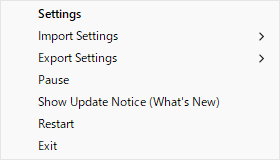
Figure: System Tray Menu - Click "Settings" to open the configuration panel
2. “Presets” Tab: Apply Recommended Environments with One Click
When first adopting fjFlow, navigating dozens of parameters can feel overwhelming. The “Presets” tab provides five carefully curated configurations tailored to common scenarios. A single click deploys optimal values across all 9 tabs simultaneously.
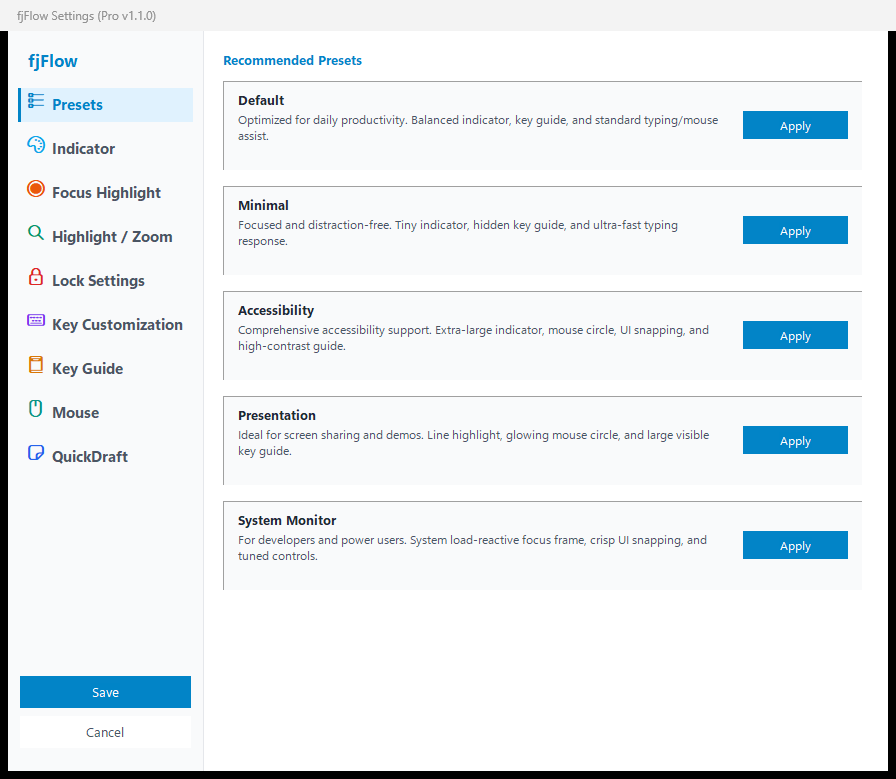
Figure: ① "Presets" Tab - Instantly switch between 5 tailored workflow environments
Available Presets
- Default: A balanced baseline designed for standard office work and writing. Applies moderate indicator sizing, subtle window border highlighting, and responsive key extensions.
- Minimal: A distraction-free profile designed for programming and focused typing. Reduces indicator size to a subtle badge and retracts visual aids immediately during keystrokes.
- Accessibility: Designed for users who frequently lose track of small carets or active windows. Applies an extra-large indicator and high-contrast, flashing border highlights.
- Presentation: Designed for screen sharing, streaming, and live demonstrations. Enlarges indicator fonts and enables caret row highlighting by default so audiences can follow along easily.
- System Monitor: Designed for hardware monitoring enthusiasts. Dynamically ties window highlight borders to CPU and memory workloads (shifting from cool green/blue to warm yellow/red).
How to Apply
- Click Presets in the left sidebar.
- Click the Apply button next to your desired preset card.
- The button state changes to greyed out (“Applied”), and all parameter values update across tabs.
- Click Save Settings in the bottom-left to finish.
3. “Indicator” Tab: Track Input Modes Without Obstructing Text
Users often type unintended text because they lose track of their input mode, or find floating badges distracting when they cover typed characters. The “Indicator” tab controls the visual style, typography, and smart-evasion behavior of the badge tracking your text caret. You can monitor input status without moving your gaze away from the text cursor.
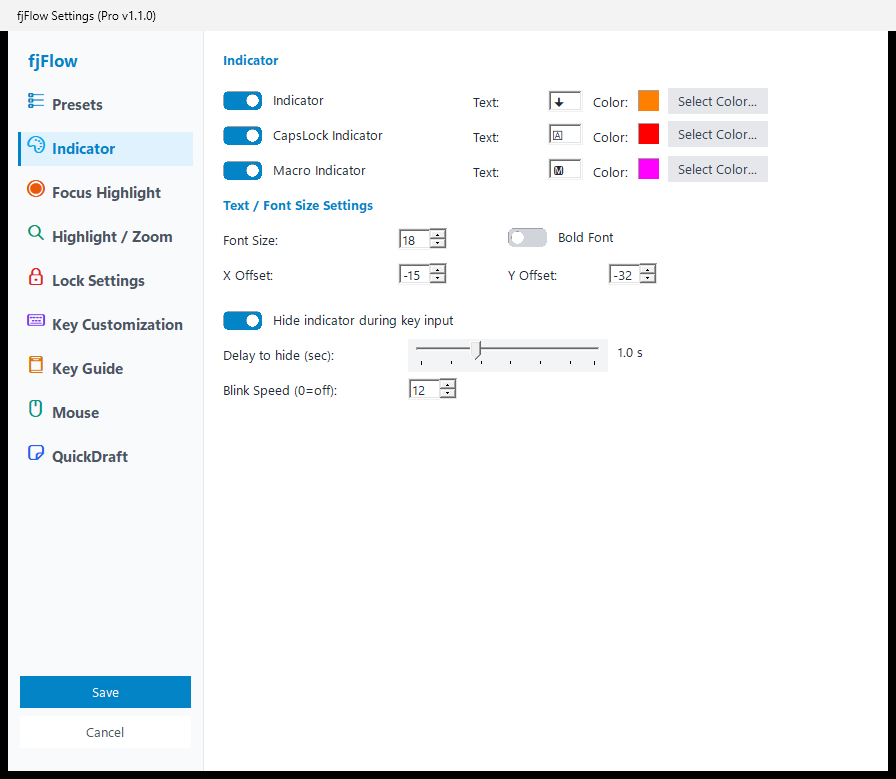
Figure: ② "Indicator" Tab - IME/CapsLock/Macro badge text, palette, and auto-hide timing
Key Configuration Sections
1. Display Text and Color
- Base Indicator: Master toggle, display character, and color picker.
- IME ON / OFF (Japanese layouts):
Independently customize character (e.g.,
あ/A) and background color when IME is active or inactive. OFF mode can also be hidden entirely. - CapsLock: Toggle, custom text badge (default:
CAPS), and dedicated alert color. - Macro: Toggle, label, and palette for Instant Macro recording/playback states.
2. Typography and Positioning
- Font Size (pt): Specify font size from 6 to 72 pt using a numeric spin control (default: 14 pt).
- Bold: Toggle thick typography for enhanced legibility on high-DPI screens.
- X / Y Offset (px): Fine-tune relative positioning from -100 to +100 px relative to the text cursor caret.
3. Smart Evasion and Timing
- Hide During Keystrokes (HideDuringInput): Automatically fades the indicator out while typing so it never obscures freshly typed text.
- Delay Before Reappearing: Adjusts the idle pause threshold from 0.1 to 3.0 seconds before the badge returns (recommended: 1.0 s).
- Blink Speed: Tune flashing frequencies between 0 and 255.
4. “Focus Highlight” Tab: Instantly Identify Active Windows
In multi-monitor setups or dense desktop workflows, users often type into the wrong window by mistake. The “Focus Highlight” tab provides window boundary glow, internal tinted overlay, and background dimming. It draws your attention immediately to the active target, preventing misdirected inputs.
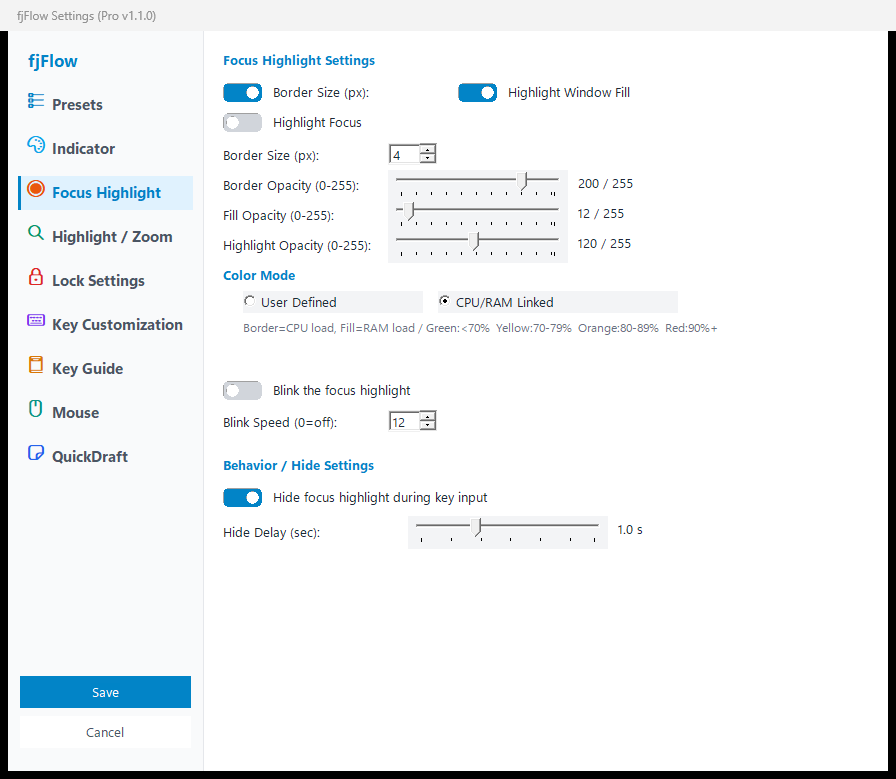
Figure: ③ "Focus Highlight" Tab - Active window outlines, tinted fills, and background dimming
Key Configuration Sections
1. Highlight Toggles and Opacity
- Border Highlight: Surrounds active windows with a distinct accent frame (0 to 20 px thickness).
- Fill Highlight: Applies a soft, translucent color wash inside the active window.
- Dimming Mask: Dims all background, inactive windows to bring the target window forward.
- Opacity Sliders: Granularly adjust Border Alpha, Fill Alpha, and Dimming Alpha from 0 to 255.
2. Color Modes
- User Color: Select custom HEX colors for frame and fill via the color dialog.
- Resource Dynamic: Automatically tints the border based on live CPU and RAM load (Green = Calm, Red = High load).
3. Blink and Typing Suppression
- Blink on Focus Change: Flashes the border briefly when switching applications to guide your gaze.
- Hide While Typing: Temporarily suppresses the border during active typing, with a customizable recovery delay (0.1 to 3.0 s).
5. “Highlight / Zoom” Tab: Prevent Skipping Lines and Improve Readability
Skimming long code files or reading dense documentation often causes users to lose their place or strain their eyes on small fonts.
The “Highlight / Zoom” tab configures one-touch Caret Line Highlighting (F8) and Caret Magnification Loupe (F9).
You can inspect details clearly without changing global display scaling.
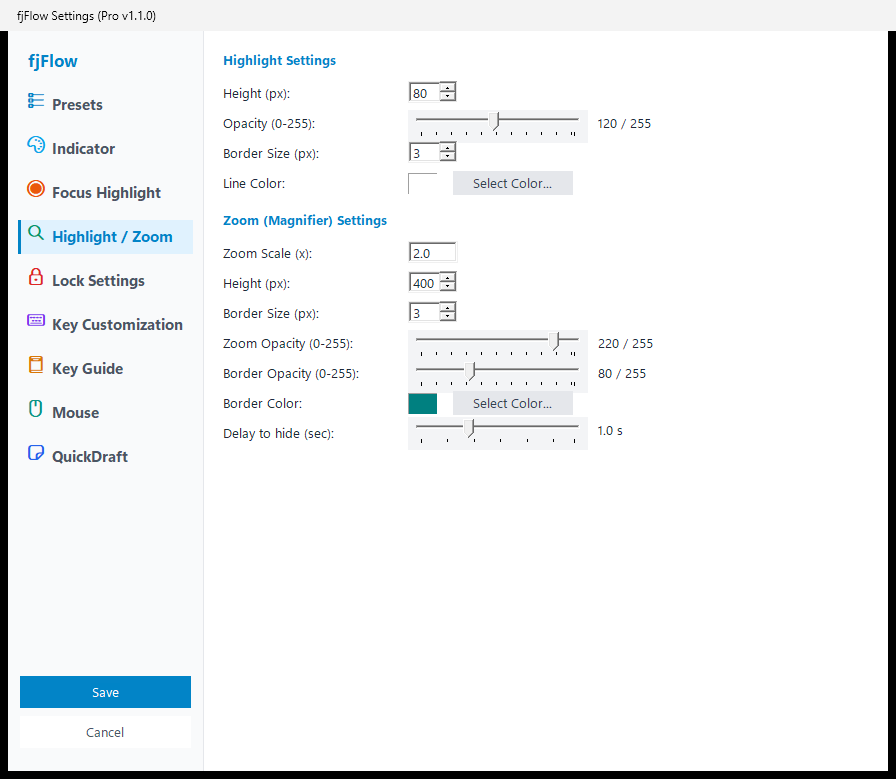
Figure: ④ "Highlight / Zoom" Tab - Row accent band (F8) and floating magnifier (F9)
Key Configuration Sections
1. Caret Row Highlight (F8)
Projects a focused horizontal band centered on your active line while dimming the top and bottom of the screen.
- Band Height (px): Set the band height between 10 and 500 px.
- Mask Opacity: Adjust background shading density from 0 to 255.
- Border Size & Color: Customize framing line width and accent color.
2. Caret Zoom Loupe (F9)
Magnifies the immediate area surrounding the text cursor in an floating viewport.
- Zoom Scale: Adjust magnification power from 1.0x to 5.0x (recommended: 2.0x).
- Window Height (px): Adjust viewport height from 50 to 600 px.
- Border Size & Opacity: Customize loupe framing aesthetics.
- Auto-Fade Delay: Set auto-dismiss duration between 0.1 and 3.0 seconds after key release.
6. “Modifier Locks” Tab: Relieve Finger Fatigue from Combination Keys
Holding down Ctrl or Shift repeatedly for complex shortcuts places unnecessary strain on pinky fingers and wrists. The “Modifier Locks” tab configures one-shot sticky locks, visual indicators, and automatic timeouts. It eliminates the need to hold multiple keys simultaneously and prevents accidental stuck states.
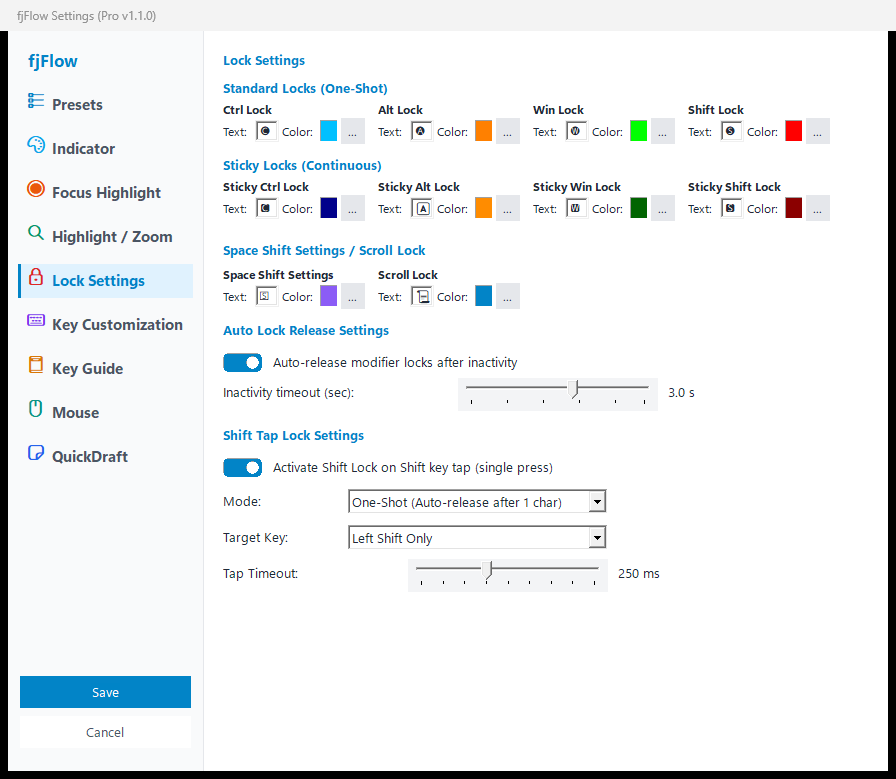
Figure: ⑤ "Modifier Locks" Tab - One-shot locks, sticky locks, and auto-idle release
Key Configuration Sections
1. Normal Lock (One-Shot)
Tapping a modifier key locks it for the next keypress only, automatically releasing once consumed.
- Ctrl / Alt / Win / Shift: Custom badge letters and colors displayed next to the caret when locked.
2. Sticky Lock (Continuous)
Double-tapping a modifier locks it continuously until explicitly pressed again.
- Ctrl / Alt / Win / Shift: Dedicated badges and colors distinguishing sticky mode from one-shot mode.
3. Space Shift & Scroll Lock
- Space Shift (SS): Customize indicator letter and accent color when entering Space Shift layer.
- ScrollLock: Customize indicator text and color when ScrollLock is active.
4. Auto-Idle Unlock
Prevents leaving modifier keys locked when stepping away from the keyboard.
- Auto Unlock Toggle: Enables safe automatic release upon inactivity.
- Timeout Threshold: Adjustable from 0.2 to 5.0 seconds via slider (recommended: 1.0 s).
7. “Key Customize” Tab: Type and Navigate Without Leaving Home Row
Reaching for arrow keys, Backspace, or Delete forces hands away from the typing home row hundreds of times a day. The “Key Customize” tab configures the Finite State Machine (FSM) timings and layer key mappings. You can move cursors and perform deletions while keeping fingers centered on the home row.
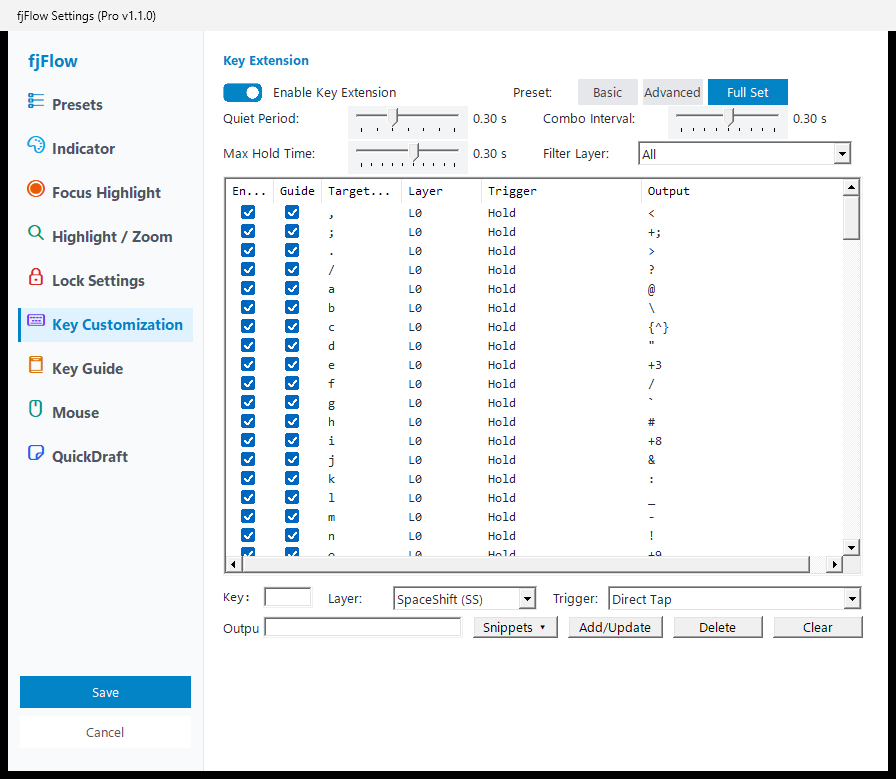
Figure: ⑥ "Key Customize" Tab - Map layer bindings and fine-tune FSM input timings
Key Configuration Sections
1. FSM Sensitivity and Timers
- Silence Time: Requires an idle pause before/after a keypress to trigger special taps (0.20 to 0.50 s), eliminating false positives during rapid typing.
- Combo Interval: Window for double-taps and sequence inputs (0.10 to 0.50 s).
- Hold Timeout: Distinguishes a brief tap from a held modifier (0.05 to 0.50 s). Directly controls Space Shift activation responsiveness.
2. Layer Filter and Mapping Table
- Layer Dropdown: Filter bindings by All, L0 (Base), SS (Space Shift), L1, or L2.
- Mapping ListView: Displays guide check status, source key, layer, trigger type (Tap, Double Tap, Hold, Silence Tap, Sequence), and output string.
3. Binding Editor Form
- Source Key: Enter the physical key to remap.
- Layer: Choose target layer (L0 / SS / L1 / L2).
- Trigger: Select actuation condition (Direct Tap, Double Tap, Hold, Silence Tap).
- Output: Enter target keystrokes or symbols (e.g.,
{Left},{BackSpace}). - Add / Update: Click to commit changes to the mapping table.
8. “Key Guide” Tab: Glance at On-Screen Cheat Sheets Near the Caret
Memorizing new layers and key bindings takes time, and constantly checking external manuals disrupts workflow. The “Key Guide” tab configures the Heads-Up Display (HUD) overlay that floats beside the caret when holding Space. You can check key assignments at a glance directly in your line of sight.
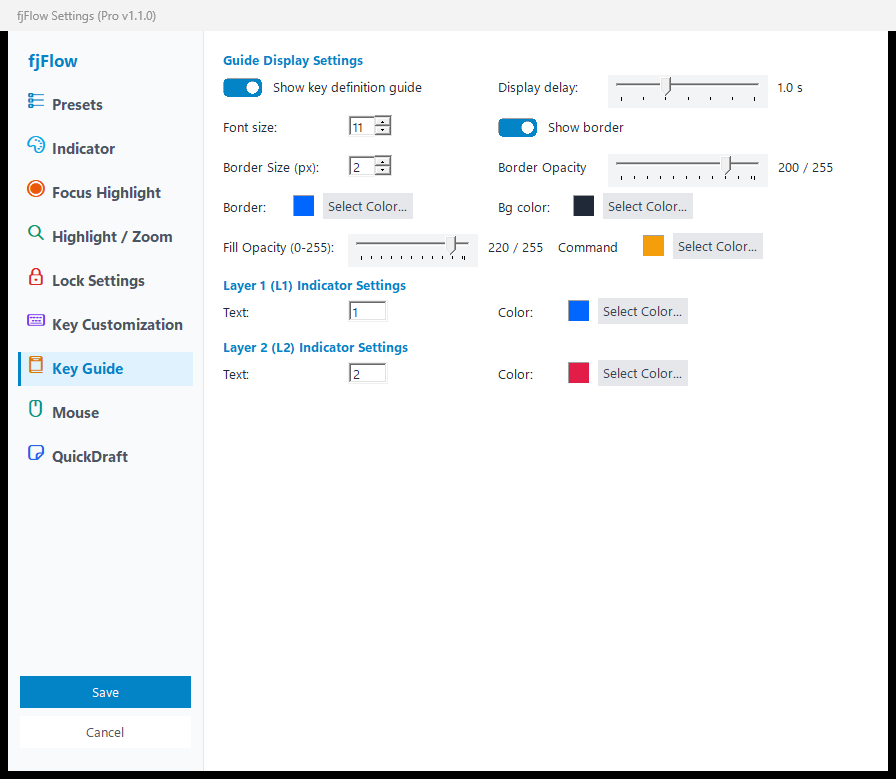
Figure: ⑦ "Key Guide" Tab - Floating HUD palette, font sizing, and display delay
Key Configuration Sections
1. Display Timing and Sizing
- Enable Key Guide: Master toggle for HUD display.
- Display Delay (s): Time elapsed after pressing Space before the HUD appears (0.0 to 3.0 s). Beginners benefit from 0.2 s, while experienced typists can set 0.5 s or higher to prevent visual flicker.
- Font Size: Scale HUD typography from 8 to 40 pt.
2. Frame and Palette Styling
- Border Size & Opacity: Frame width (0 to 20 px) and translucency (0 to 255).
- Background & Command Colors: Pick contrasting palettes for dark and light desktop wallpapers.
3. Layer Badges
- Layer 1 (L1) / Layer 2 (L2):
Configure custom badge text (default:
L1,L2) and tint colors displayed during layer shifts.
9. “Mouse” Tab: Minimize Mouse Reaching and Aid Pointer Precision
Switching back and forth between keyboard and mouse breaks concentration, while small UI targets cause missed clicks. The “Mouse” tab configures Space Mouse, Mouse Circle, UI Snap, and Computer Vision UI Hints. It minimizes hand displacement and provides magnetic assistance for precise clicks.
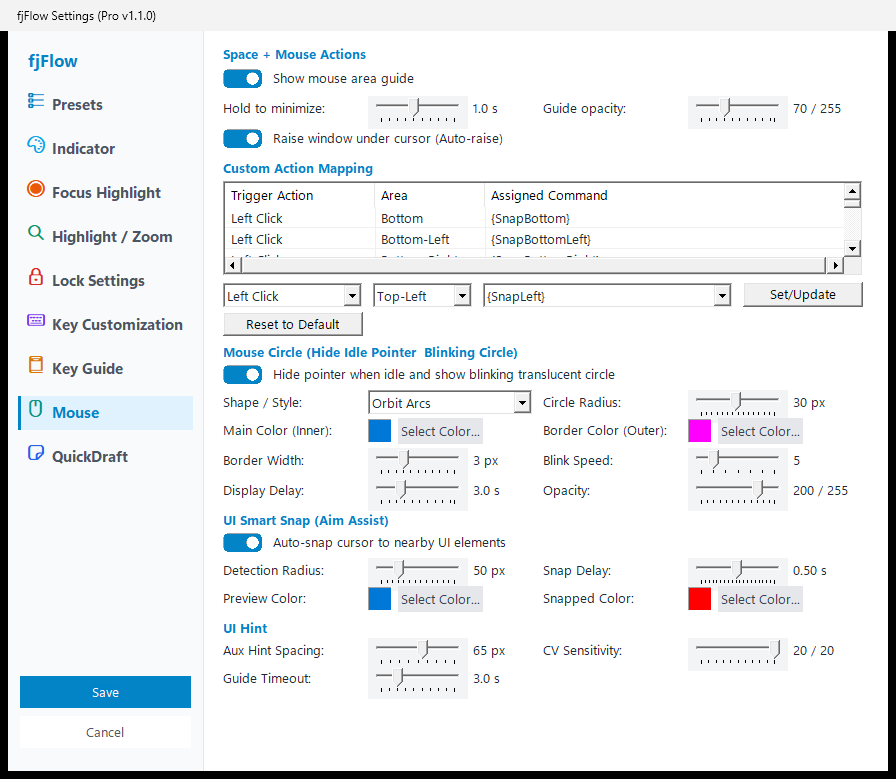
Figure: ⑧ "Mouse" Tab - Space Mouse, Mouse Circle, UI Snap, and UI Hint configurations
Key Configuration Sections
1. Space Mouse
Hold Space and click to snap, resize, or reposition windows across 9 screen zones.
- Zone Guide: Toggle the 9-sector visual overlay grid.
- Hold Delay to Minimize: Threshold to trigger window minimize actions (0.2 to 2.0 s).
- Guide Alpha: Adjust grid transparency from 10 to 200 / 255.
- Auto-Raise: Automatically brings windows under the pointer to the foreground.
- Action Mappings: Assign commands (e.g.,
{SnapLeft},{WinEnlarge}) to specific click types and screen regions.
2. Mouse Circle
Draws a dynamic ring around the pointer so you never lose cursor location on ultrawide or multi-monitor screens.
- Shape Styles: Choose between
DualRing,Reticle,Glow, orOrbit. - Radius: Adjust circle radius from 4 to 60 px.
- Blink & Delay: Set pulse rate and idle delay (0.5 to 10.0 s) before fading in.
3. UI Smart Snap (Aim Assist)
Two-stage magnetic pointer assist that previews nearby buttons or inputs when the cursor stops, then automatically snaps to their center after a short delay.
- Auto-snap cursor to nearby UI elements: Master toggle to enable or disable Aim Assist.
- Detection Radius: Search distance around the stopped pointer (
20to150 px, default50 px). - Snap Delay: Waiting time between the preview highlight and the cursor jump (
0.05to1.00 s, default0.50 s). Moving the mouse by3 pxor more cancels the snap immediately. - Preview Color / Snapped Color: Distinct border colors for target preview (default
#0078D7) and completed snap (default#FF0000).
4. UI Hints (UiHint)
Uses Computer Vision and UI Automation to tag clickable elements with letter badges for direct keyboard selection.
- Auxiliary Min Distance: Prevents badge overlaps (20 to 100 px).
- CV Sensitivity: Slider from 1 to 20 to tune image detection sensitivity.
- Timeout: Auto-dismiss duration for hints (1.0 to 10.0 s).
10. “QuickDraft” Tab: Decoupled Drafting and Cell Input Assist
The 9th tab configures the QuickDraft floating editor, which isolates text composition from commitment in spreadsheets and chat applications.
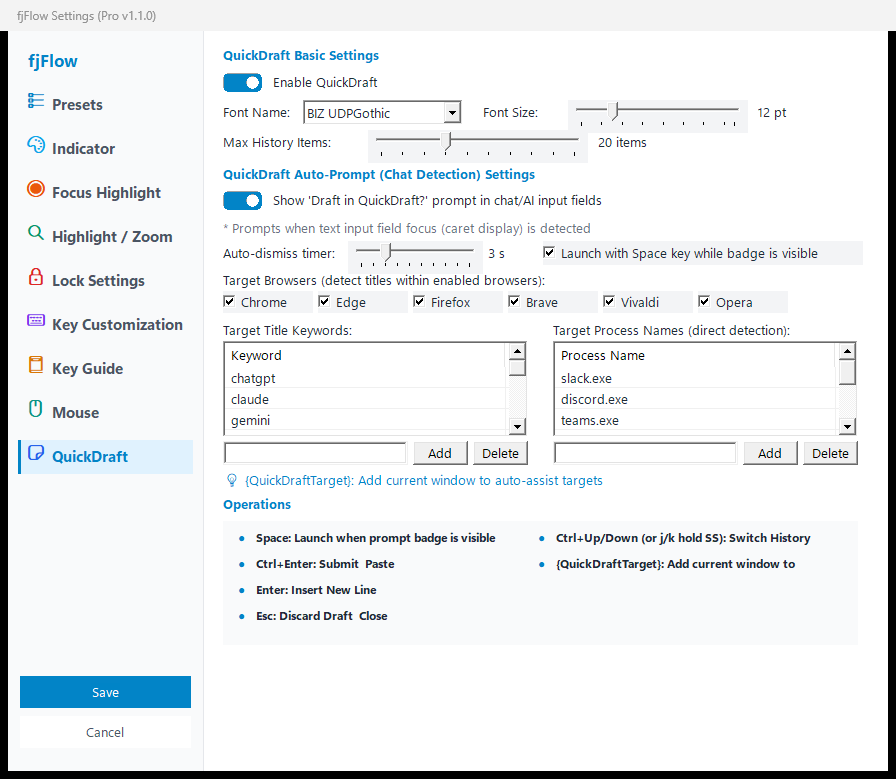
Figure: ⑨ "QuickDraft" Tab - Floating scratchpad font, history retention, and auto-prompt settings
1. Basic Preferences
- Enable QuickDraft: Master switch to turn QuickDraft on or off.
- Editor Font & Size: Choose font family (Meiryo UI, Yu Gothic UI, Segoe UI, Consolas, etc.) and size (9-24 pt).
- History Retention Limit: In-memory draft history capacity (5 to 50 items).
2. Auto-Prompt Settings
- Enable Auto-Prompt: Show a helpful badge (
💡 Draft with QuickDraft? [Space] Launch) near the cursor when chat inputs are focused. - Auto-Dismiss Timeout: How long the prompt badge stays on screen before disappearing (1-10 s).
- Launch with Space Key: Allow pressing
Spaceto immediately open the editor when the badge is visible. - Target Browsers: Selectively enable detection across 6 browsers (Chrome, Edge, Firefox, Brave, Vivaldi, Opera).
- Filter Lists: Dedicated ListView managers to add or remove title keywords (ChatGPT, Claude, etc.) and process names (slack.exe, discord.exe, teams.exe, etc.).
11. Saving Settings and Differences Between Editions
Once adjustments are complete, apply your changes to your active desktop session.
- Click Save Settings in the bottom-left corner of the settings window.
- Your parameters are written to
fjFlow.jsonandKeyExt.json, updating your desktop immediately. - If you want to discard your modifications, click Cancel to revert back to your previous configuration.
Edition Capabilities
| Feature & Behavior | Free Edition | Pro Edition |
|---|---|---|
| Full GUI Customization | Supported (All 9 tabs configurable) | Supported (All 9 tabs configurable) |
| Instant Desktop Feedback | Supported (Live preview during session) | Supported (Live preview during session) |
| Persistent Storage Across Reboots | Resets to recommended defaults on restart | Persisted permanently to JSON files |
| Export / Import Configurations | Not Supported | Supported (Backup & migrate between PCs) |
Next Steps
We recommend starting by picking a preset in the Presets tab, then refining specific parameters in the Indicator and Key Customize tabs to match your personal typing style.
- Read the complete key extension guide: Key Extension Manual
- Learn more about decoupled drafting: QuickDraft Guide
- Learn more about pointer highlighting: Mouse Circle
- Directly inspect configuration schemas: Configuration (JSON)