Caret Zoom
The Caret Zoom feature magnifies the screen area surrounding your text cursor and displays it as a horizontal banner at ...
Caret Zoom
The Caret Zoom feature magnifies the screen area surrounding your text cursor and displays it as a horizontal banner at the top or bottom of the screen, enhancing text legibility.
Features
1. Screen-Edge Banner Alignment
- Activated by pressing a hotkey (default:
F9). - Interference Prevention: Snaps to the top or bottom edge of your screen. If the caret is on the top half of the screen, the zoom window appears at the bottom, and vice versa, keeping your active typing area unobstructed.
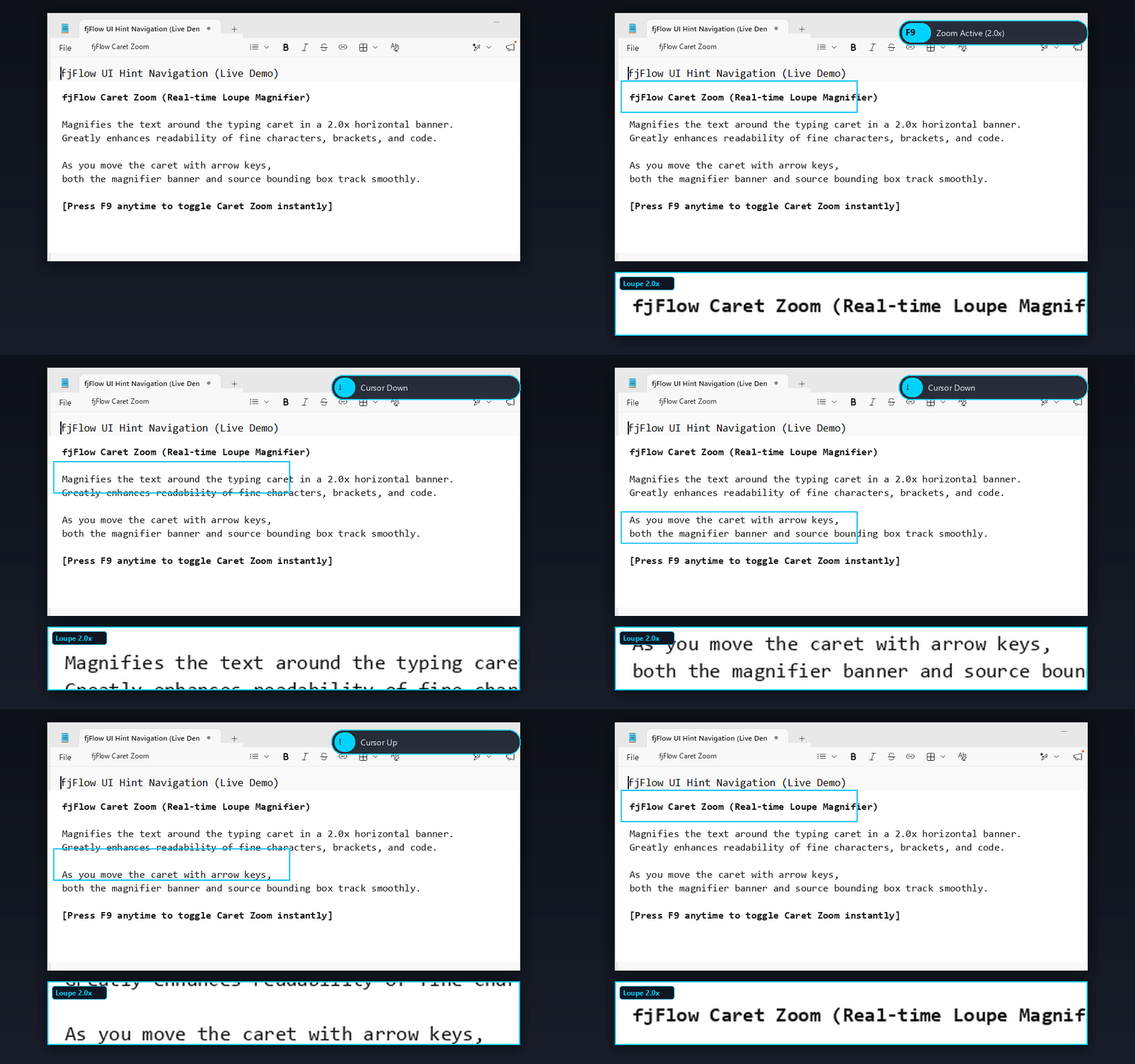
Figure: Caret Zoom Live Demo - Press F9 to magnify the line around the caret as a 2.0x horizontal banner. Navigating with ↑ / ↓ keys dynamically tracks the caret in real-time.
2. Drag-and-Drop Repositioning
- Click and drag inside the zoom window to move it anywhere on your desktop.
- While dragging, the automatic fade-out timer is suspended.
- Auto-Reset: The zoom window automatically snaps back to its default edge position if the active window changes, moves, or the caret shifts vertically.
3. Drag Guide & Smart Fade-Out
- Usage Guide: When activated, a semi-transparent guide label (“Drag to move”) appears for 3 seconds, then fades out over 1 second.
- Smart Fade: The zoom banner remains visible while typing or clicking (including mouse scrolls). Once inputs stop, it fades out smoothly after a set delay.
4. Source Border
- Draws a
2pxborder around the actual screen region being magnified, helping you trace which part of your document is active. The border color synchronizes with the zoom window’s outline color.
5. Jitter Suppression
- To prevent visual jitter or flashing caused by rapid typing or cursor movements, the utility uses a jitter-suppression algorithm that snaps the capture coordinates to block increments based on the zoom factor.
Customization Options
You can adjust these settings in the “Highlight/Zoom” tab of the settings GUI:
- Hotkey: Toggle shortcut key.
- Zoom Scale: Magnification level (1.0x to 5.0x).
- Zoom Height (px): Height of the banner (50 to 600 px).
- Fade Delay (ms): Idle time before the window fades out (0.1 to 3.0 seconds).
- Window Design: Configure outline colors, outline thickness, window opacity, and outline opacity.