QuickDraft Operation Guide (QuickDraft)
Decouple text composition from input commitment in environments where Enter commits operations (Spreadsheets, Chat).
Decouple text composition from input commitment in environments where Enter commits operations (Spreadsheets, Chat)
When entering text into spreadsheet cells or chat applications, pressing Enter often triggers premature cell commitment or accidental message submissions.
fjFlow’s QuickDraft decouples composing text from committing input, offering an always-on-top editor where you can craft and paste multi-line content without being constrained by application-specific input rules.
Table of Contents
- 1. The Dual Role of the Enter Key and QuickDraft’s Solution
- 2. Two Primary Use Cases
- 3. Steps to Launch QuickDraft and Compose Text
- 4. Steps to Transfer Composed Text to Target Field
- 5. Steps to Retrieve Past Drafts (History)
- 6. Steps to Add and Manage Target Apps for Auto-Prompt
- 7. Adjusting Settings in the QuickDraft Tab
- 8. Safety and Privacy Safeguards
1. The Dual Role of the Enter Key and QuickDraft’s Solution
In many applications, the Enter key serves two conflicting purposes:
- User’s Goal: Insert a line break and continue typing the thought.
- App’s Behavior: Finalize input, commit a cell, or dispatch a message.
For example, when typing in an Excel cell, accidentally hitting Enter commits the cell and moves the selection down. Re-entering the cell, double-clicking, and repositioning the cursor wastes time and disrupts your train of thought.
Similarly, in chat tools, pressing Enter while confirming Japanese IME conversions frequently dispatches half-finished messages.
Users simply want to write. Yet because every application imposes different input rules, humans are forced to adapt their habits to the app.
QuickDraft resolves this friction by completely separating the act of writing text from the act of committing input:
- Enter Always Inserts a Line Break: Inside QuickDraft,
Enterreliably creates a new line without any risk of commitment or dispatch. - Commit Explicitly with
Ctrl + Enter: Only when your text is ready do you pressCtrl + Enterto transfer it back to the target cell or input field. - No Automatic Dispatch: QuickDraft only pastes the text into place. It never executes cell navigation or presses the send button, allowing you to review the final result before submitting.
- Non-Destructive Clipboard: Existing clipboard data is backed up before pasting and restored immediately afterward.
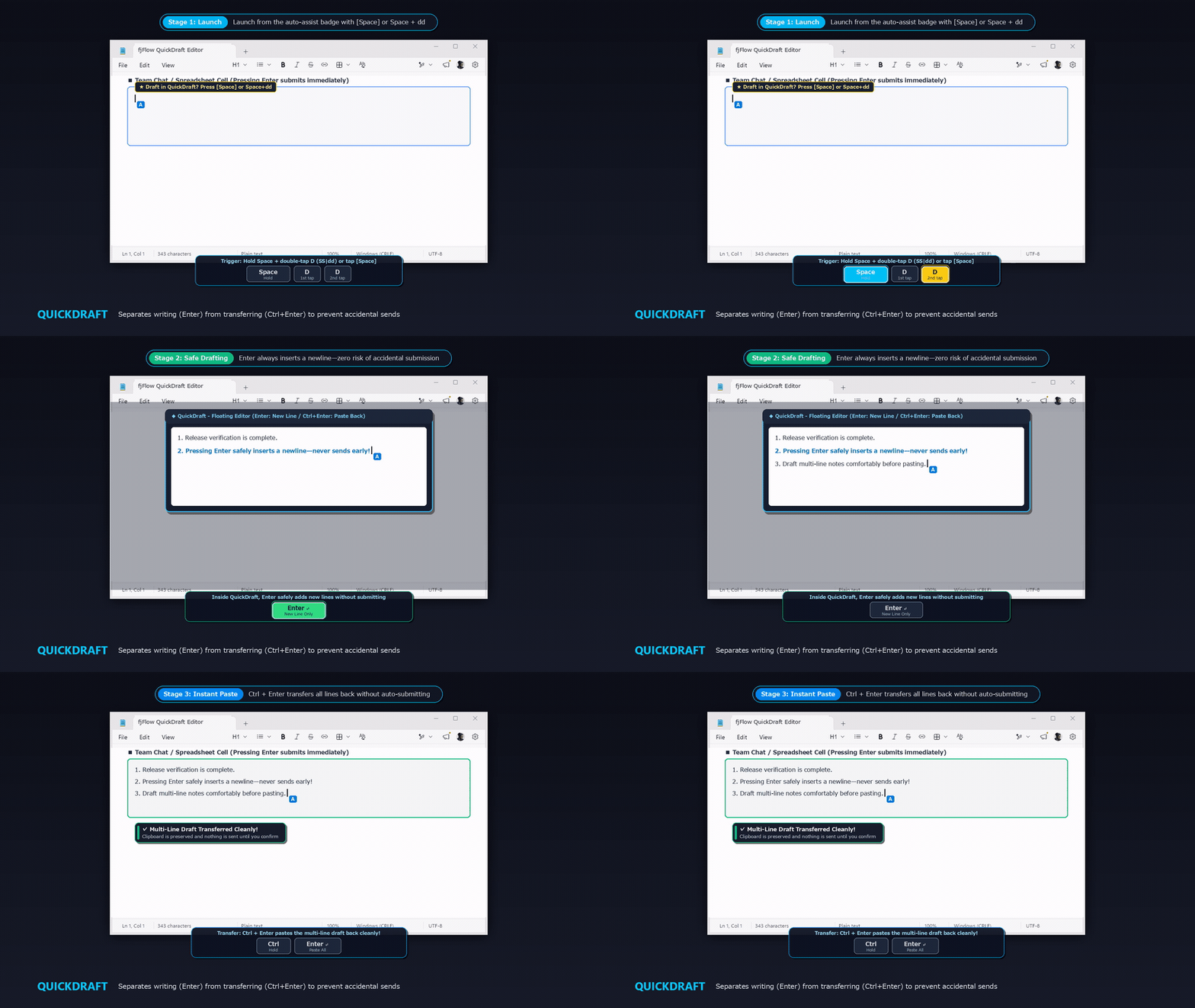
Figure: QuickDraft (Live Demo) - Launch via auto-assist badge or Space + dd ➔ Press Enter to safely insert new lines without premature submission ➔ Press Ctrl + Enter to paste the multi-line draft back into the original field
2. Two Primary Use Cases
2.1 Multi-Line Entry in Spreadsheets (Excel / Google Sheets)
This represents the most frequent and impactful scenario in daily operational tasks:
- Typical Fields:
- Remarks, incident logs, meeting notes, action items in Excel.
- Customer details, management tracking sheets, daily reports in Google Sheets.
- Traditional Friction:
- Remembering app-specific multi-line shortcuts (
Alt + Entervs.Ctrl + Enter). - Involuntary
Enterkeypresses during natural typing that exit the cell prematurely. - The repetitive cycle of re-selecting the cell, entering edit mode, and navigating back to the text tail.
- Remembering app-specific multi-line shortcuts (
- How QuickDraft Solves It:
- Select the cell and open QuickDraft with a quick shortcut.
- Compose multi-line notes freely, pressing
Enterto format paragraphs cleanly. - Press
Ctrl + Enterto stream the completed multi-line block directly into the cell.
2.2 Preventing Premature Submissions in Chat and AI Forms
Eliminates communication slip-ups and half-baked prompts:
- Typical Fields:
- Slack, Microsoft Teams, Discord, LINE.
- ChatGPT, Claude, Gemini, web ticketing forms.
- Traditional Friction:
- Disparate shortcut rules (“Enter to send” vs. “Ctrl+Enter to send”) across different platforms.
- Premature dispatches triggered by IME confirmation keypresses.
- How QuickDraft Solves It:
- Draft the entire message calmly in the always-on-top window.
- Paste securely via
Ctrl + Enter. - Inspect the finished text on the platform before sending at your own timing.
3. Steps to Launch QuickDraft and Compose Text
3.1 Launch Instantly via Keyboard Shortcut (SS|dd)
- With focus in an Excel cell or input field, double-tap
dwhile holdingSpace(SS|dd). - The QuickDraft window pops up on top of the screen.
- Type your text freely, using
Enterfor line breaks.- The editor remains pinned on top, allowing you to scroll reference documents in background windows.
3.2 Launch via Auto-Prompt Badge in Chat Fields
- Focus on a supported chat field (Slack, Discord, ChatGPT, Claude, etc.).
- A badge pops up directly above the text cursor: “💡 QuickDraft? [Space] Launch [Other Key] Normal Input”.
- Press
Spacewhile the badge is visible to launch QuickDraft immediately. - To type directly in the field instead, press any regular key to dismiss the badge transparently.
4. Steps to Transfer Composed Text to Target Field
- Inside QuickDraft, press
Ctrl + Enter(or click “Commit & Paste”). - QuickDraft automatically closes and returns focus to the original cell or input field.
- The composed text is pasted directly via
Ctrl + V. - Review the contents and commit normally.
[!TIP] Flexible Commit Keys: In addition to
Ctrl + Enter, pressingAlt + Enter,Shift + Enter, orEnterwhile a modifier lock (CtrlLock, ShiftLock) is active will also trigger commit and paste.
Safety Guard: If the target window was closed or altered, a prompt appears allowing you to paste into the current window, copy to clipboard, or return to editing.
5. Steps to Retrieve Past Drafts (History)
- Open QuickDraft.
- Press
Ctrl + ↑orCtrl + ↓to cycle through previous drafts. - You can also pick past drafts from the “History:” dropdown at the top.
- Click “Clear” to start with a clean slate.
6. Steps to Add and Manage Target Apps for Auto-Prompt
6.1 Add Current Window to Target with One Stroke (qt SS)
- Activate the window you want to register (e.g. an internal tool).
- Press
qtwhile holdingSpace(qt SS). - Choose “Add Process Name” or “Add Title Keyword” in the popup dialog.
- Auto-prompting activates immediately upon saving.
6.2 Edit Target Keywords and Process Names in Settings
- Open Settings from the tray icon and navigate to the QuickDraft tab.
- Manage entries in the Title Keywords and Process Names list views using Add and Delete buttons.
7. Adjusting Settings in the QuickDraft Tab
- Basic Preferences: Toggle QuickDraft on/off, select editor font family and size (9-24 pt), and adjust maximum in-memory draft history (5-50 items).
- Auto-Prompt Settings: Toggle cursor prompt badge, adjust auto-dismiss timeout slider (1-10s), and toggle Space key launch.
- Target Filters: Selectively enable detection across 6 browsers (Chrome, Edge, Firefox, Brave, Vivaldi, Opera).
8. Safety and Privacy Safeguards
- Volatile In-Memory Storage (Zero Telemetry): All drafts remain strictly in volatile RAM. No data is stored on disk or sent over any network.
- Full Clipboard Protection: Preserves and restores existing clipboard content across the paste operation.
- Target Verification: Validates target window existence and title match before pasting.