Getting Started
[!NOTE]
Getting Started
Learn how to set up and start using FJ Flow.
System Requirements
- OS: Windows 10 / 11
- Execution Requirements:
- If using the pre-compiled executables (
fjFlow.exeorfjFlowFree.exe), no additional runtimes are needed. - If running directly from the source code (
.ahk), AutoHotkey v2 runtime is required.
- If using the pre-compiled executables (
Installation & Launching
- Download
fjFlow.exe(Pro Edition) orfjFlowFree.exe(Free Edition) from the releases page. - Place the executable in any directory and double-click to run.
- The FJ Flow icon will appear in your system tray, and caret monitoring/window highlighting will begin automatically.
Basic Operations
1. Pause and Resume (Double-Tap Ctrl)
- Double-tap either the left or right
Ctrlkey quickly to instantly pause or resume caret tracking, indicator overlays, and key extensions. - This allows you to quickly return to the default keyboard behavior when typing without using your mouse.
2. System Tray Menu
Right-click (or left-click) the FJ Flow icon in the system tray to access the following options:
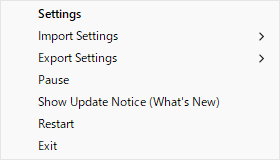
Figure: System Tray Menu
- Settings: Opens the configuration GUI (available in both editions, but saving is Pro-only).
- Import / Export Settings (Pro Edition Only): Exports or imports settings from/to JSON files.
- Pause (Pause): Toggles caret tracking and key mapping state.
- Test Update Notice (What’s New): Shows a sample notification dialog for updates.
- Restart: Restarts the utility and reloads configuration files.
- Exit: Closes FJ Flow.
3. Saving Configurations (Pro Edition Only)
In the Pro Edition, clicking “Save Settings” in the GUI automatically stores configurations in the following JSON files within the application directory:
- Primary configuration:
fjFlow.json - Key mappings:
KeyExt.json
[!NOTE] If legacy configuration files (e.g.
.ini) are found in the folder on launch, they will be automatically migrated to the new JSON formats. The Free Edition does not save or load configuration files, and any changes in the settings GUI will be temporary (they reset to internal defaults on the next launch).
Automated Optimizations
1. Keyboard Layout Detection
- On launch or reload, FJ Flow automatically detects the active keyboard layout (US/JIS) of your current active window.
- It localizes the settings UI and tray menu (English/Japanese) based on the detected layout.
- On US keyboard layouts, IME-related features are hidden, and a dedicated option to swap
CapsLockandCtrlbecomes available in the settings GUI.
2. Multi-Monitor and DPI Scaling
- Caret coordinates, window highlight borders, and zoom windows automatically align with your active monitor, even in multi-monitor setups.
- Fully handles per-monitor DPI scaling (e.g. 125%, 150%) using Win32 DPI awareness, keeping the overlay position pixel-perfect.