Settings GUI
FJ Flow provides a graphical settings screen allowing you to customize the layout, colors, borders, and shortcuts in rea...
Settings GUI
FJ Flow provides a graphical settings screen allowing you to customize the layout, colors, borders, and shortcuts in real-time.
Key Features
- Flat & High-Contrast Design:
- Free from 3D borders or styled frames, ensuring clean and legible layouts.
- The “Cancel” button is styled with a white background and gray text to prevent accidental saving.
- Optimized Dimensions:
- Configured with a height of
740pxto prevent UI overlapping in the sidebar. - The window’s close (X) button is hidden, requiring you to click “Save Settings” or “Cancel” to exit.
- Configured with a height of
- Real-time Preview:
- Any adjustments to colors, sliders, or checkboxes immediately apply to active elements on your screen and settings previews.
- Layout Adaptability:
- On launch, if a US keyboard layout is detected, the utility hides all IME-related options.
- It presents a simplified tab layout featuring the
Swap CapsLock and Ctrloption.
- Version Availability:
- The settings GUI is accessible in both the Free and Pro Editions.
- While the Free Edition allows you to adjust and test preferences temporarily, only the Pro Edition can save configurations to JSON or export them.
Tabs Overview
1. “Presets” Tab
Apply 5 distinct setups instantly. The active setup is marked with an “Applied” badge.
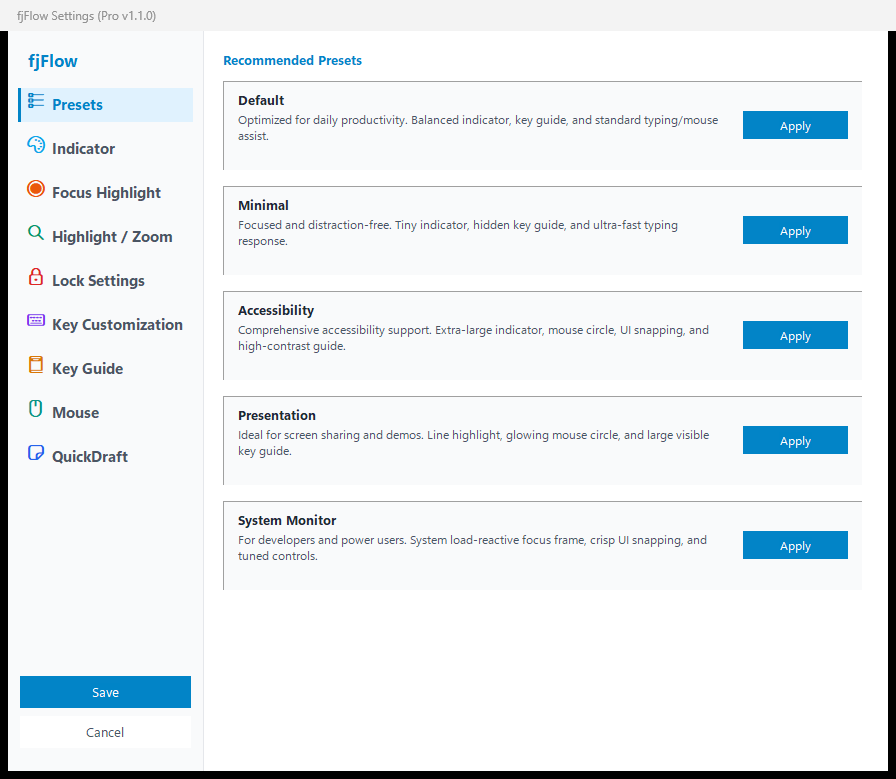
Figure: 1. "Presets" Tab - Quick selection of 5 recommended profiles
- Default: Standard caret indicator and window highlighting.
- Minimal: Small indicator that disappears instantly when typing.
- Accessibility: Large, bold indicator and thick, breathing window borders.
- Presentation: Enlarged labels and active line dimming overlays.
- System Monitor: Synchronizes highlight colors with CPU and memory usage.
2. “Indicator” Tab
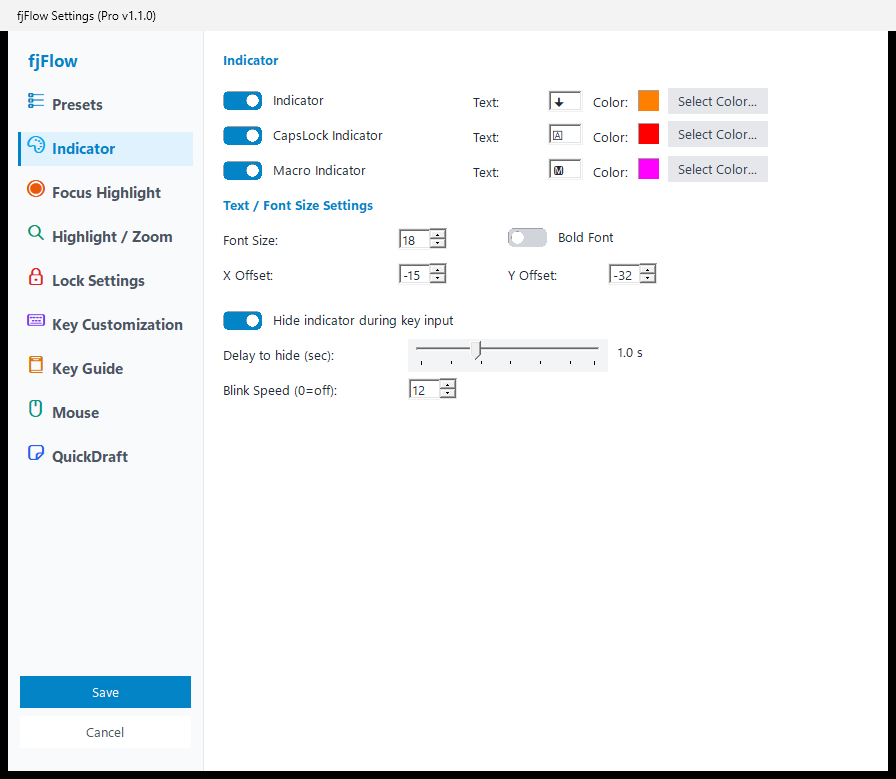
Figure: 2. "Indicator" Tab - IME/CapsLock badge appearance, offset, and behavior
- Indicator: Toggle displays, set characters, and select colors.
- Macro Indicator: Configure custom characters (default:
M) and colors for macro recordings. - IME Indicator (JIS Layout Only): Choose separate characters and colors for IME On and Off states.
- CapsLock Indicator: Set character and color alerts for active CapsLock states.
- Font & Position: Adjust font sizes (6 to 72pt), bold weight, and X/Y position offsets.
- Behavior: Toggle hide-while-typing features, set idle reappearance delays, and adjust blink fade speeds.
3. “Focus Highlight” Tab
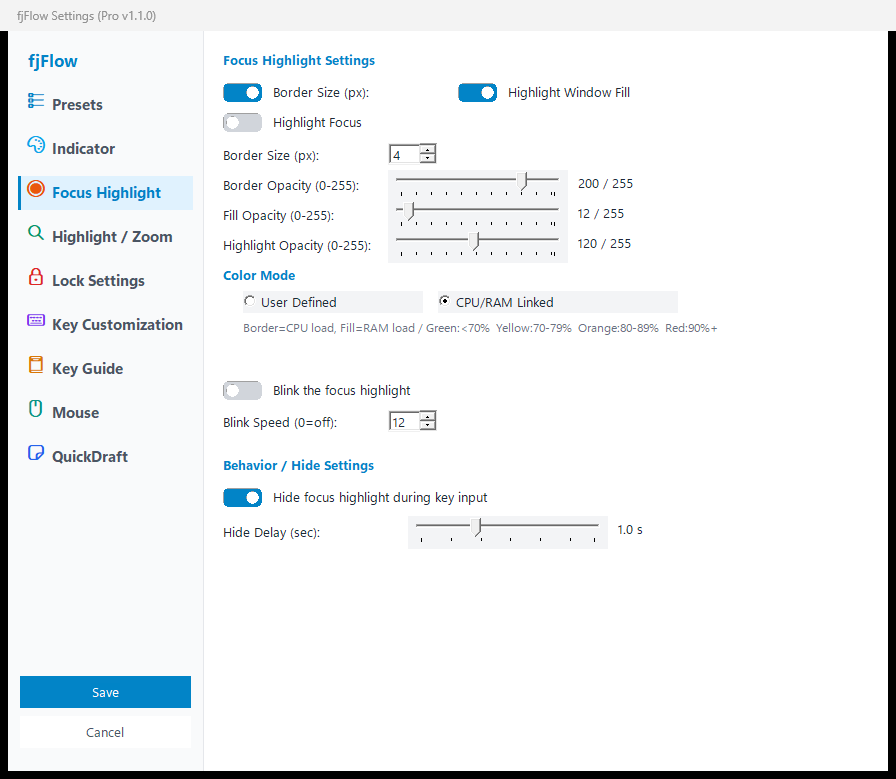
Figure: 3. "Focus Highlight" Tab - Active window border and interior tint options
- Highlight Options: Toggle window outline borders and translucent fills.
- Color Mode: Choose between user-defined colors or system-linked CPU/RAM monitoring colors.
- Blink: Toggle and adjust breathing animation speed for window borders.
4. “Highlight/Zoom” Tab
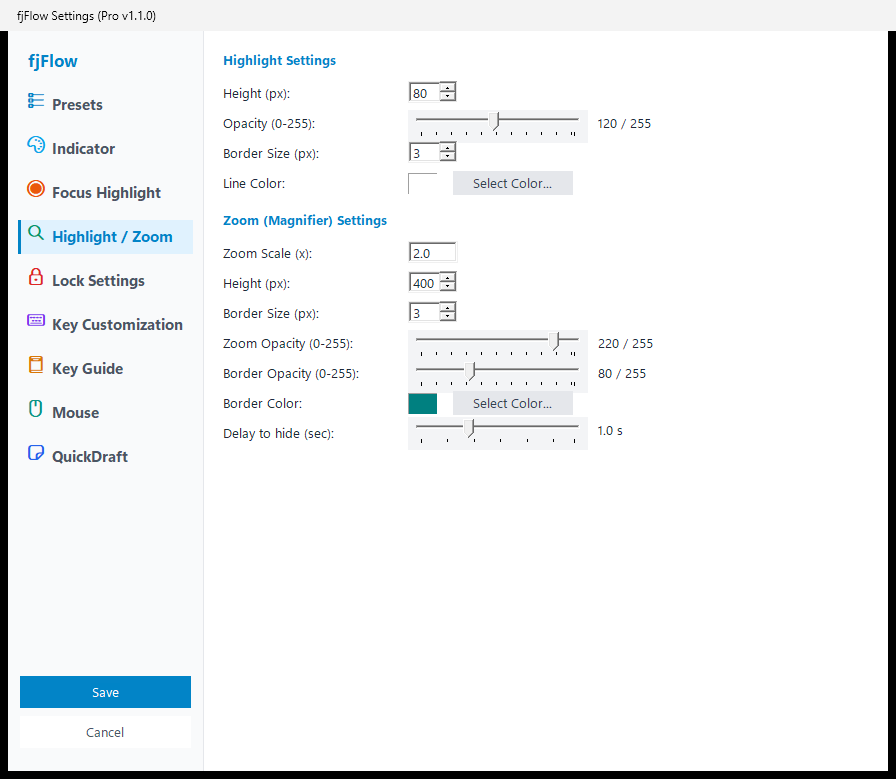
Figure: 4. "Highlight/Zoom" Tab - Caret line highlight and magnifier zoom banner
- Line Highlight: Define hotkeys, vertical line range heights, dimming mask opacities, outline colors, and outline thickness.
- Zoom: Configure hotkeys, magnification scales (1.0x to 5.0x), zoom banner height, border details, opacities, and idle fade-out delays.
5. “Modifier Locks” Tab
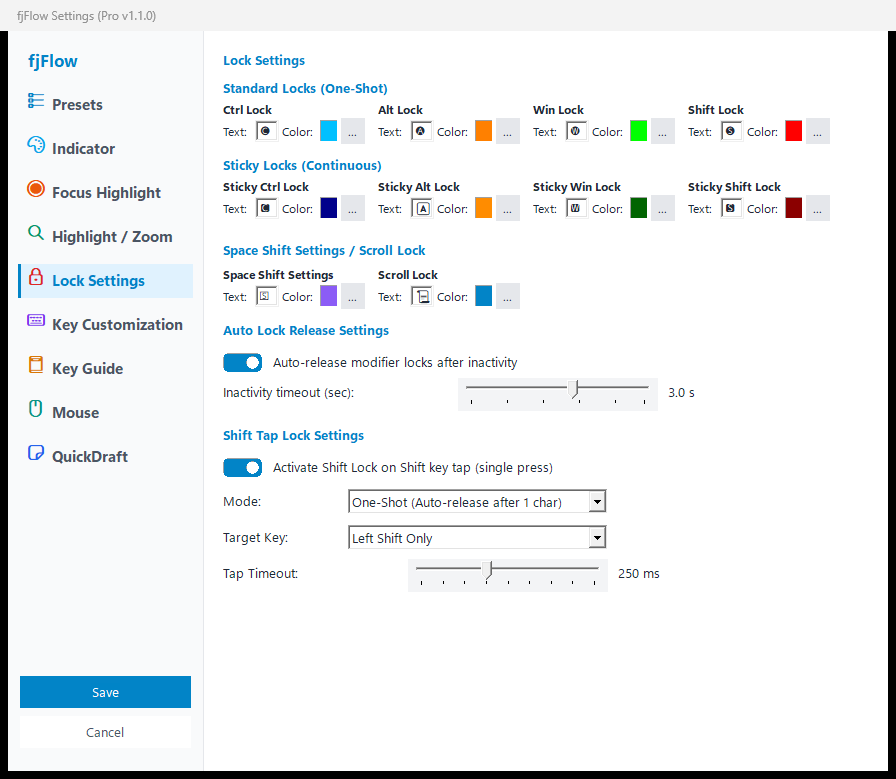
Figure: 5. "Modifier Locks" Tab - One-shot modifier locks and unlock-on-idle timeout
- ShiftLock: Toggle ShiftLock features, labels, colors, and configure One-Shot Shift releases.
- Space Shift: Configure label characters (default:
Ⓢ) and colors for the Space Shift modifier. - Modifier Lock: Customize labels and colors for Ctrl, Alt, and Win locks.
- Import/Export (Pro Edition Only): Load or save primary utility settings to external
fjFlow.jsonfiles.
6. “Key Extensions” Tab (Key Customization)
Configure customized actions and shortcuts for when holding Space (Space Shift), double-tapping, or typing in specialized layers.
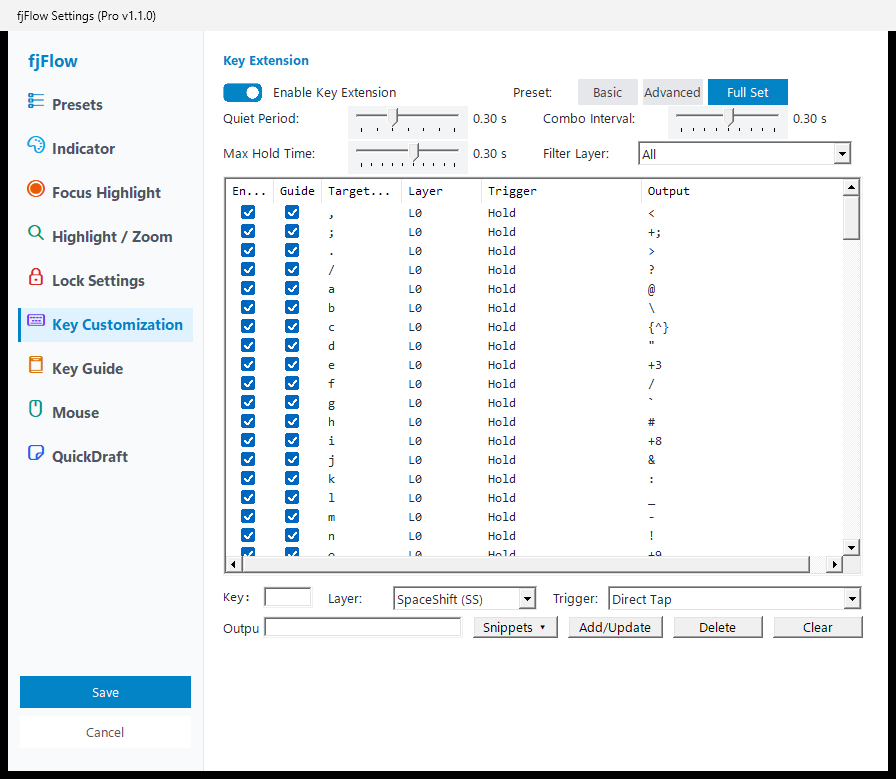
Figure: 6. "Key Customization" Tab - Layer mapping list, rule editor, and trigger customization
Panel Layout & Components
- Key Extension Presets (Basic / Advanced / Full Set)
- Preset Buttons: Batch-apply recommended mapping configurations tailored to user experience level with one click.
- Intelligent Status Detection: The button matching the active configuration lights up in blue. Manual checkbox adjustments automatically clear the highlight.
- Typing Sensitivity Sliders (Top Area)
- Silence Wait Time: Waiting window required before and after pressing a standalone key without interference from regular typing stream.
- Combo / Double-Tap Window: Time interval allowed between two consecutive keystrokes to trigger a double-tap action.
- Hold Threshold: Duration a key must be held down to be recognized as a long-press trigger.
- Layer Filter Dropdown
- Filters the displayed mapping table (
All/Base L0/Space Shift SS/Layer 1/Layer 2).
- Filters the displayed mapping table (
- Key Mapping Table (Central ListView)
- Displays all currently registered key rules.
- Guide Column (Checkbox): Uncheck any key to hide it from the on-screen Key Guide HUD while keeping its functional behavior active.
- Click any row to automatically load its target key, layer, trigger, and output into the editing form below.
- New Rule / Edit Form (Bottom Panel)
- Panel for adding, updating, or deleting custom mappings.
Step-by-Step Instructions
Step 0: Batch-Applying a Key Extension Preset
- In the Presets section at the top of the Key Extensions tab, click your desired preset:
- Basic (Default): Safe starter set enabling core Space Shift navigation (
h/j/k/l), deletion (fBS /gDel), Enter (;), and UI Hints (m). Symbol holds and Numpad keys are disabled. - Advanced: Enables Base layer symbol holds and combos, Numpad row (
q–p), modifier locks (a/s/d/z), QuickDrag (md), and more. - Full Set: Completely activates all layers and combinations (L0, SS, L1, L2).
- Basic (Default): Safe starter set enabling core Space Shift navigation (
- The checkboxes in the mapping list update immediately.
- Click “Save Settings” to confirm.
Step A: Registering a New Key Function
- In the Key field, enter a single alphanumeric character or symbol (e.g.,
jorm). - Select the Layer dropdown:
- Space Shift (SS): Triggers while holding down Space with your thumb (the most standard mode).
- Base (L0): Triggers during normal keystrokes without Space.
- Layer 1 (L1) / Layer 2 (L2): Extended layer modes.
- Select the Trigger (keystroke condition):
- Direct Tap: Fires immediately upon keypress (standard combo).
- Double-Tap: Fires when tapping the key twice quickly.
- Hold: Fires when holding down the key past the threshold.
- Silence Tap: Fires on isolated keystrokes with typing silence before and after.
- Sequence / Combo: Fires upon typing specific sequential keys.
- In the Output field, specify the key code or special function. You can type directly or use the “Reserved Words…” button to insert commands in one click.
- Click “Add / Update”. The rule is checked for conflicts and added to the list.
- Click “Save Settings” at the bottom-right corner to persist changes.
Step B: Inserting Functions via the “Reserved Words…” Menu
Clicking “Reserved Words…” opens a categorized menu to insert fjFlow commands directly into the Output field:
| Category | Typical Functions & Uses | Representative Reserved Words |
|---|---|---|
| 🎯 UI Hint Navigation | Direct click on buttons/inputs without touching the mouse. | {HintClickAll} (All elements & click){HintInput} (Filter text inputs){HintButton} (Filter buttons){HintLink} (Filter links) |
| 🖱️ Mouse & Wheel | Mouse clicks and wheel scroll operations from the keyboard. | {Click} (Left click){Click R} (Right click){WheelUp} (Scroll up){WheelDown} (Scroll down) |
| 🔍 Functions & Commands | Trigger fjFlow’s specialized utility features. | {KeyGuide} (On-screen HUD){Highlight} (Line highlight F8){Zoom} (Caret loupe F9){UfPaste} (Plain text paste without formatting){Macro} / {ExecuteMacro} (Macro record / playback){Repeat} (Repeat last keystroke action) |
| ⌨️ Keys & Editing | Cursor navigation and text editing actions. | {Left} {Right} {Up} {Down} (Arrow keys){BS} (Backspace) / {Delete}{Enter} (Confirm / Newline) / {Tab} / {Esc}{Home} / {End} (Line start / end) |
| 🔒 Modifier Locks | Ergonomic one-shot or sticky modifier locking. | {ShiftLock} (Shift for next key only){CtrlLock} (Ctrl for next key only){StickyShiftLock} (Persistent Shift lock){UnlockAll} (Release all locks) |
| 🪟 Window Controls | Maximize, minimize, resize, or close active windows. | {WinClose} (Close active window){WinMaxRes} (Maximize / Restore){WinMin} (Minimize){WinEnlarge} / {WinShrink} (Scale window size) |
| 📐 Window Snap | Instant quadrant and half-screen grid window snapping. | {SnapLeft} (Snap left half){SnapRight} (Snap right half){SnapCenter} (Snap center){MoveCenter} (Move window to screen center) |
Step C: Editing or Deleting Existing Mappings
- Edit: Click any existing rule in the ListView table -> edit the values in the form -> click “Add / Update”.
- Delete: Click the row you want to remove -> click “Delete”.
- Toggle Guide Display: Click the checkbox in the Guide column directly to show or hide that key from the on-screen Key Guide HUD.
Recommended Customization Examples
| Goal | Target Key | Layer | Trigger | Output |
|---|---|---|---|---|
| Space+j for Down Arrow | j |
Space Shift (SS) |
Direct Tap | {Down} |
| Space+; for Enter at Home Row | ; |
Space Shift (SS) |
Direct Tap | {Enter} |
| Space+m for Omni UI Hints | m |
Space Shift (SS) |
Direct Tap | {HintClickAll} |
| Space+v for Plain Text Paste | v |
Space Shift (SS) |
Direct Tap | {UfPaste} |
| Space+s for One-Shot Shift | s |
Space Shift (SS) |
Direct Tap | {ShiftLock} |
| Space+h for Left Arrow | h |
Space Shift (SS) |
Direct Tap | {Left} |
7. “Key Guide” Tab
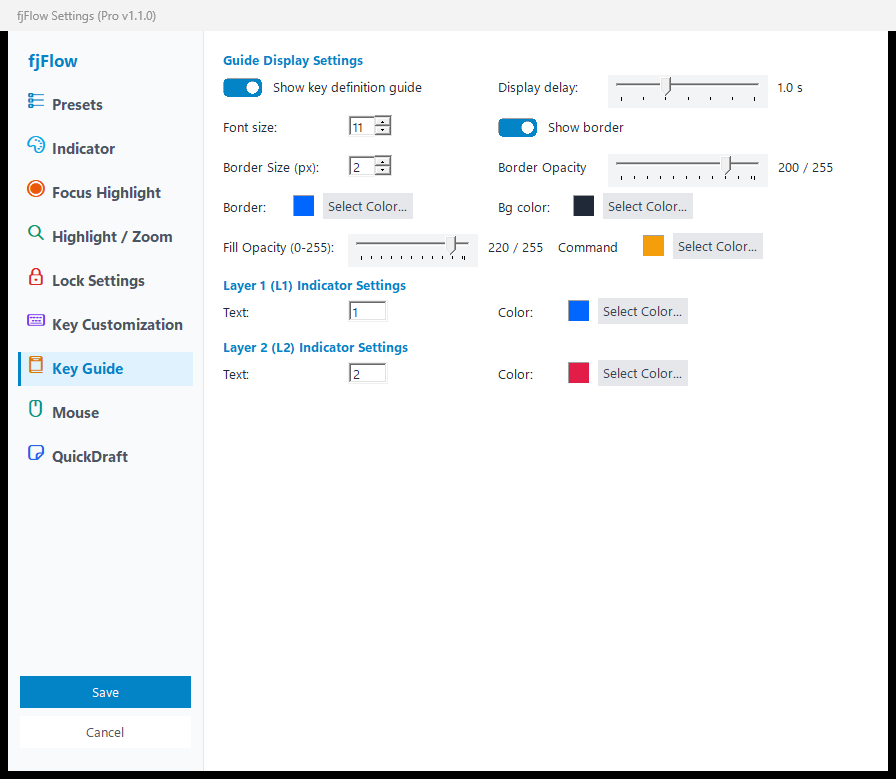
Figure: 7. "Key Guide" Tab - Popup colors, borders, delay, and auto-dismiss reset
- Guide Preferences: Configure popup colors, borders, font families, font sizes, and activation delays.
- Auto-Dismiss on Typing: Instantly hides the guide popup and resets timers on any physical keypress.
8. “Mouse” Tab (SpaceMouse, Mouse Circle, UI Smart Snap & UI Hints)
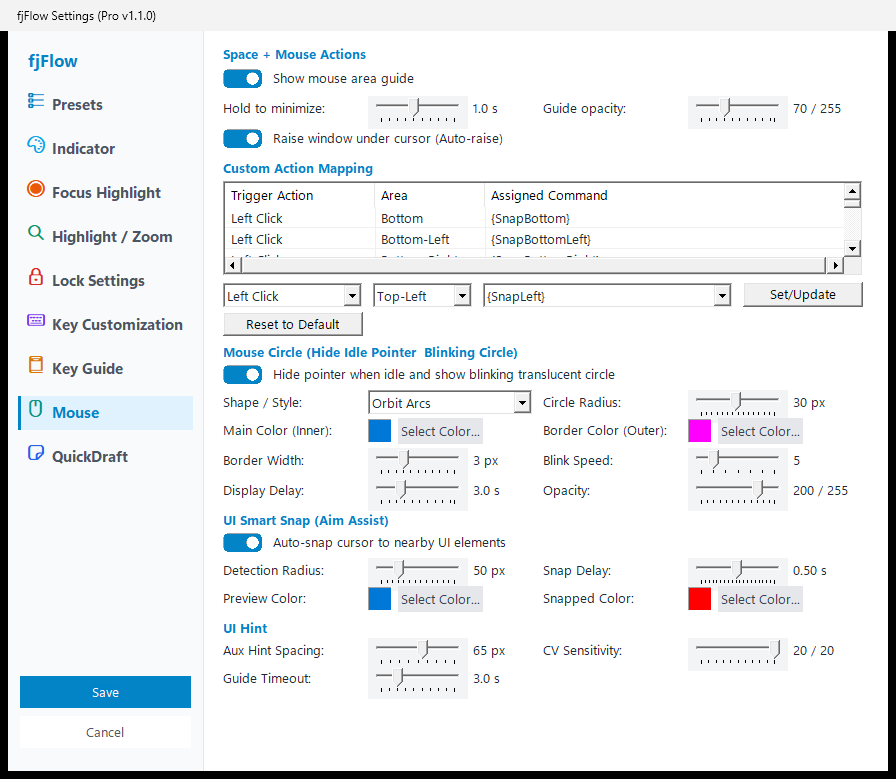
Figure: 8. "Mouse" Tab - Space Mouse, Mouse Circle, UI Smart Snap (Aim Assist), and UI Hint styling
- Space Mouse & Custom Action Mapping: Configure 9-zone gesture triggers, hold-to-minimize delay, guide overlay alpha, auto-raise on hover, and zone click commands.
- Mouse Circle: Choose between 4 styles (
DualRing/Reticle/Glow/Orbit), circle radius, inner/outer colors, border width, blink speed, and idle fade-in delay. - UI Smart Snap (Aim Assist):
- Auto-snap cursor to nearby UI elements: Toggle two-stage magnetic pointer snapping when the cursor stops near buttons or inputs.
- Detection Radius: Adjust the search radius around the pointer (
20 pxto150 px, default50 px). - Snap Delay: Set the waiting window between the preview highlight and the automatic cursor jump (
0.05 sto1.00 s, default0.50 s). - Preview Color / Snapped Color: Customize border highlight colors for target preview (default
#0078D7) and completed snap (default#FF0000).
- UI Hint: Adjust auxiliary grid spacing (
20 pxto100 px), Computer Vision (CV) sensitivity (1to20), and guide auto-dismiss timeout (1.0 sto10.0 s).
9. “QuickDraft” Tab
Decouple drafting from message transmission in chats and spreadsheets with an in-memory, floating scratchpad.
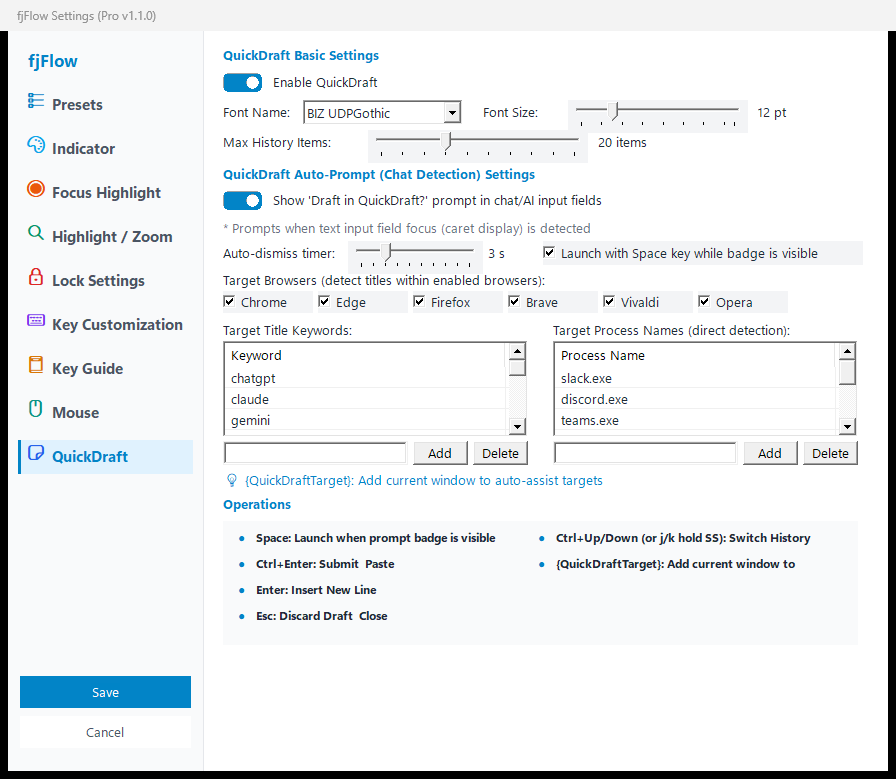
Figure: 9. "QuickDraft" Tab - Editor font, history retention, and auto-prompt detection assist
- Master Toggle: Enable or disable the floating scratchpad editor.
- Editor Appearance: Select font family (Segoe UI, Meiryo UI, Consolas, etc.) and font size (9-24 pt).
- Draft History Retention: Adjust memory capacity for recent draft entries (5 to 50 items).
- Auto-Prompt Detection: Automatically triggers a cursor-following badge (
💡 Draft with QuickDraft? [Space] Launch) upon focusing target input fields. - Target Detection Customization: Selectively enable detection across 6 major web browsers and manage keyword/process detection filters.